In part 1 we got a tenant and a named storage vault created in VDC. That’s only half the job though. The vault exists, but the VBR server that’s supposed to write backups to it has no idea.
This post covers the other half. That means registering the customer’s VBR server with VDC, assigning the vault to it, and creating the repository inside VBR. All of it goes through the VSPC REST API, so the naming stays under your control the whole way through.
What You Need Before Starting#
- A storage vault from part 1, and its
instanceUid. - The vault’s VDC tenant mapped to the customer’s VSPC company, which is the mapping step from part 1. VSPC won’t assign a vault from an unmapped tenant.
- The customer’s VBR server already managed by VSPC. The API only sees VBR servers that have a management agent reporting in.
- VBR 13 (build 13.0.1.2067) or later on that server. The VSPC Vault integration doesn’t support anything older, and in VSPC 9.3 a vault on AWS needs VBR 13.1 (build 13.1.0.411) or later.
- The same static REST API key and headers from part 1.
- PowerShell 7 or later for the
pwshexamples. They use-SkipHttpErrorCheck, which Windows PowerShell 5.1 doesn’t have.
Vault Archive edition isn’t supported by the integration either. Archive tenants and vaults still have to be managed in the VDC portal.
3.6.2), the same as part 1. Veeam describes these as “not fully supported yet and available for evaluation purposes”, so test them before you build anything on them. In VSPC 9.3 (API 3.7), the registration, vault assignment and folder calls move to a dedicated VDC Vault section, but the repository call is still in preview. VSPC 9.3 still accepts x-api-version: 3.6.2 and the paths haven’t changed, so the examples here work on both.The Flow at a Glance#
Five calls this time, and again the order matters. The server has to be registered before you can assign it a vault (VSPC won’t do that for you, even though the web UI does), the vault has to be assigned before you can create a folder on it, and the repository needs the folder to exist.
The other big difference from part 1 is that every write here is asynchronous. All four POST calls came back as 202 Accepted every time I ran them, so there’s a polling step after each one. That gets its own section below.
flowchart LR
    org["Org UID from part 1"]
    find["GET backupServers"]
    reg["POST registeredBackupServers"]
    assign["POST assignedVaults"]
    folder["POST folders"]
    repo["POST repositories/veeamVault"]

    org --> find
    find -->|backupServerUid| reg
    reg --> assign
    assign -->|vaultId| folder
    folder -->|folder name| repo
Find the VBR Server
Step 1
GET /infrastructure/backupServers
Input: Organization UID (from part 1)
Output: instanceUid (Backup Server GUID)Register VBR with VDC Vault
Step 2
POST /vdcVault/registeredBackupServers
Input: backupServerUid (query)
Output: 202, async result is the backup serverAssign the Storage Vault
Step 3
POST /vdcVault/registeredBackupServers/{backupServerUid}/assignedVaults
Input: backupServerUid, vaultId (query)
Output: 202, async result is an empty objectCreate the Vault Folder
Step 4
POST /vdcVault/registeredBackupServers/{backupServerUid}/assignedVaults/{vaultId}/folders
Input: Folder name
Output: 202, check the folder list afterwardsCreate the VBR Repository
Step 5
POST /infrastructure/backupServers/{backupServerUid}/repositories/veeamVault
Input: Repository name, vault ID, folder, immutability settings
Output: 202, async result is the repository (instanceUid)
Finding the VBR Server in VSPC#
The first job is getting the VBR server’s instanceUid. GET /infrastructure/backupServers returns every managed VBR server, and each one carries an organizationUid. That’s the same GUID we pulled from /organizations in part 1, so you can use it to find the right server for a customer.
It uses the same filter query parameter as before.
organizationUid="dc2e0aa8-4b32-407d-b511-b1c6cc62f30c"
json="[{\"property\":\"organizationUid\",\"operation\":\"equals\",\"value\":\"${organizationUid}\"}]"
encoded=$(printf '%s' "$json" | jq -sRr @uri)
curl -X 'GET' "https://vspc.domain.example/api/v3/infrastructure/backupServers?filter=${encoded}" \
  -H 'x-api-version: 3.6.2' \
  -H 'accept: application/json' \
  -H 'Authorization: Bearer YOUR_REST_API_KEY'
$organizationUid = "dc2e0aa8-4b32-407d-b511-b1c6cc62f30c"
$obj = @(
[ordered]@{
property = "organizationUid"
operation = "equals"
value = $organizationUid
}
)
# -InputObject keeps the array. Piping a single-item array unwraps it, and VSPC rejects the bare object.
$json = ConvertTo-Json -InputObject $obj -Compress
$encoded = [Uri]::EscapeDataString($json)
Invoke-RestMethod `
-Method GET `
-Uri "https://vspc.domain.example/api/v3/infrastructure/backupServers?filter=$encoded" `
-Headers @{
"x-api-version" = "3.6.2"
"accept" = "application/json"
"Authorization" = "Bearer YOUR_REST_API_KEY"
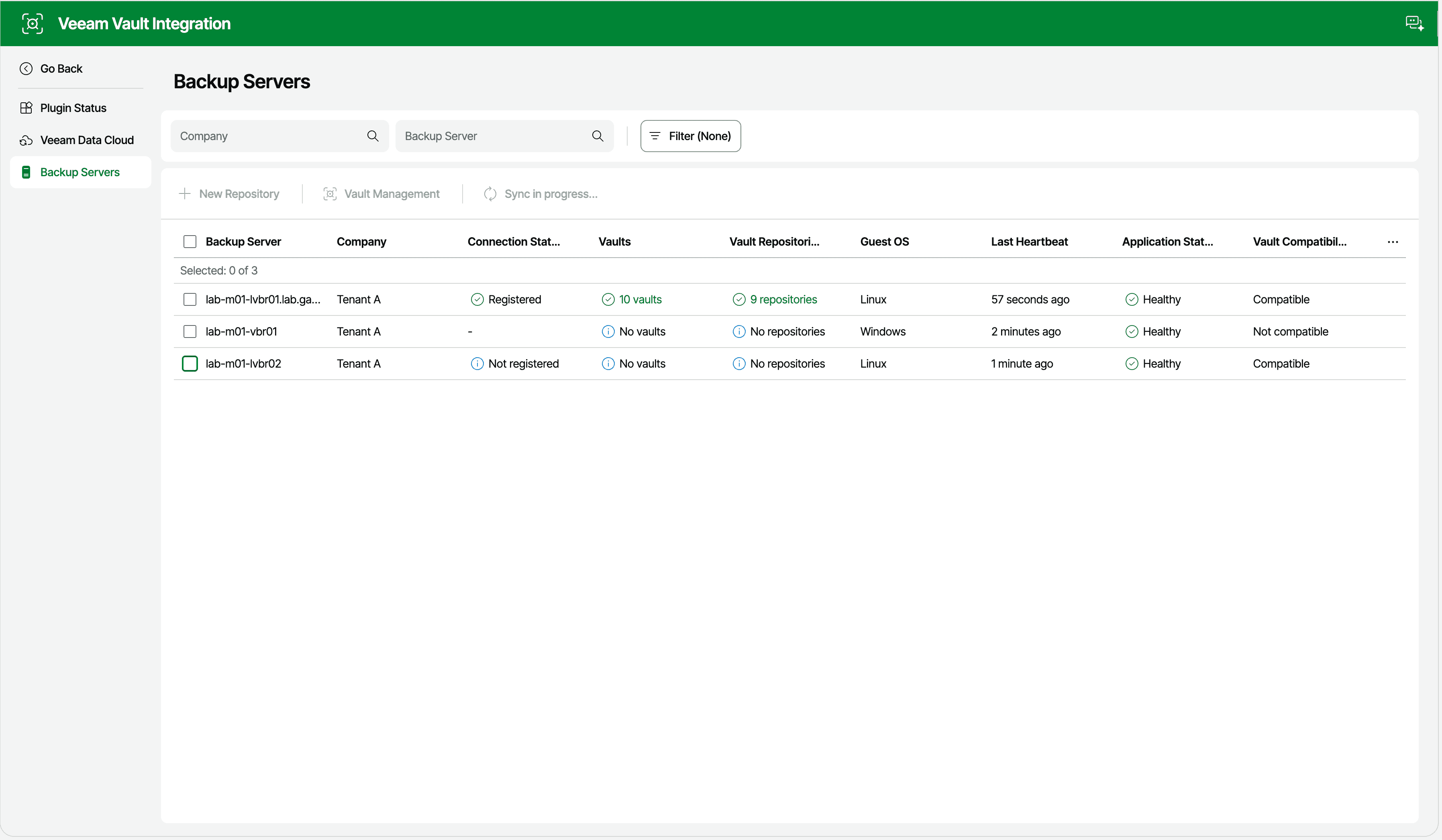
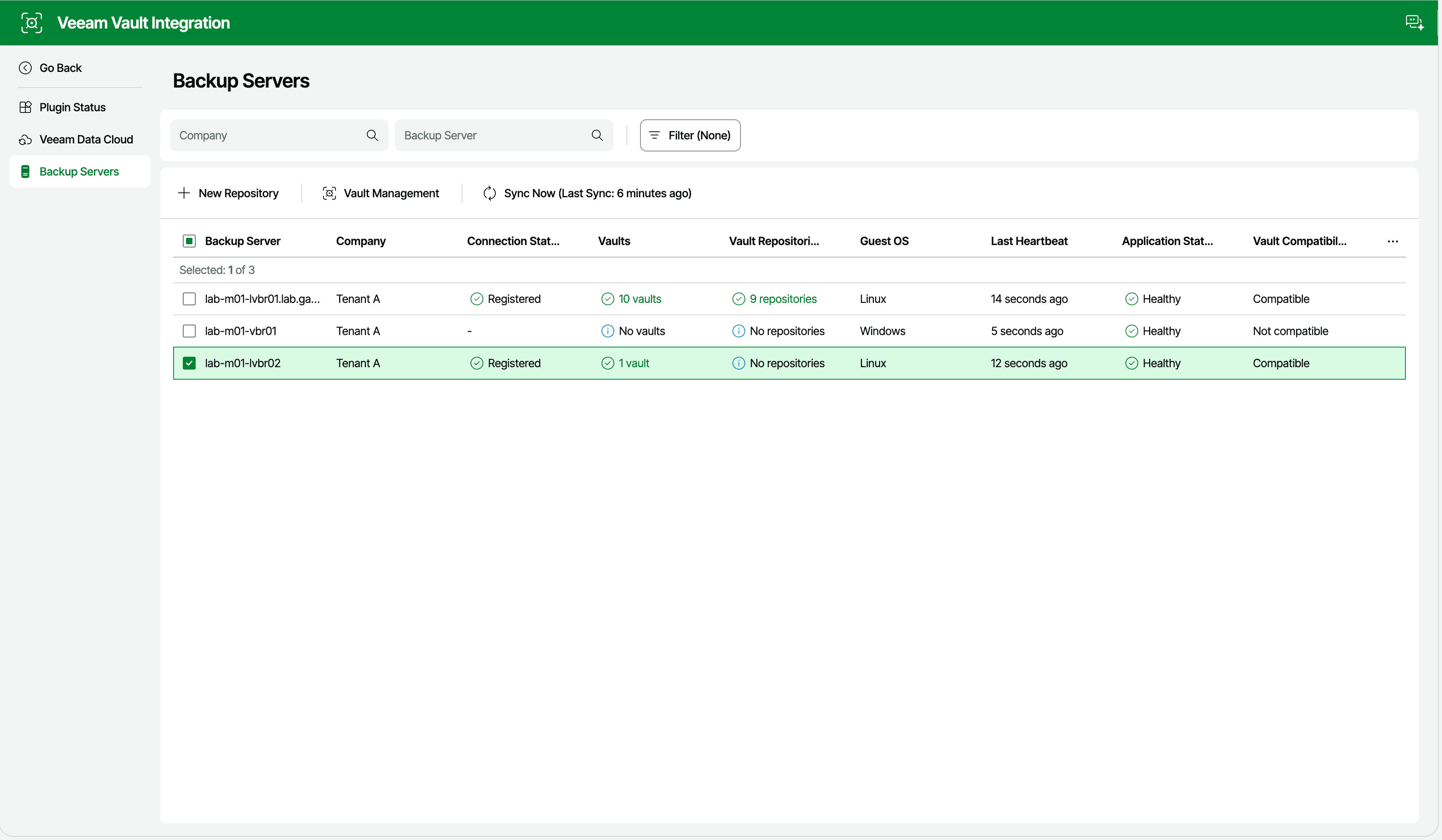
}The Backup Servers page in the Veeam Vault Integration plugin lists the same servers, plus a Vault Compatibility column that the API doesn’t have.
{
  "meta": {
    "pagingInfo": {
      "total": 2,
      "count": 2,
      "offset": 0
    }
  },
  "data": [
    {
      "instanceUid": "83f1cba3-12dd-43cc-9be4-6d9dc5254042",
      "name": "alpha-vbr01",
      "organizationUid": "dc2e0aa8-4b32-407d-b511-b1c6cc62f30c",
      "locationUid": "40b99181-a649-4fdc-856d-ddff45cd3314",
      "managementAgentUid": "a915d666-fd2d-4c27-981f-f15e7655e63e",
      "version": "13.1.2.57",
      "displayVersion": "13.1.2.57",
      "installationUid": "894ed5a8-8ef8-490c-885a-fb2b221ed09f",
      "backupServerRoleType": "Client",
      "status": "Healthy",
      "inHighAvailabilityCluster": false,
      "label": ""
    },
    {
      "instanceUid": "1bec0fc2-936b-47de-aeba-c7442782ec97",
      "name": "alpha-vbr-legacy",
      "organizationUid": "dc2e0aa8-4b32-407d-b511-b1c6cc62f30c",
      "locationUid": "40b99181-a649-4fdc-856d-ddff45cd3314",
      "managementAgentUid": "95d18ab5-367d-4417-bd6f-5c0f1f4b34d4",
      "version": "12.3.2.3617",
      "displayVersion": "12.3.2.3617",
      "installationUid": "92c3a31c-dbfb-4cfa-87a7-72464102189b",
      "backupServerRoleType": "Client",
      "status": "Healthy",
      "inHighAvailabilityCluster": false,
      "label": ""
    }
  ]
}
Grab the instanceUid from the response. Don’t assume there’s only one. A company can have more than one VBR server, and Alpha has two in my lab, so match on name as well if you’re scripting this.
Check two more fields before going any further. If status shows Inaccessible, the next calls are going to fail. Check version too. The integration needs VBR 13.0.1.2067 or later, but my 12.3 server above still shows up as registered with four vaults assigned, so VSPC doesn’t check this. The web UI has a “Vault compatibility” filter on its Backup Servers list, but the API has no equivalent field, so compare the version yourself.
Following the Async Actions#
Every POST in the rest of this post returns 202 Accepted with an empty body and a Location header pointing at an async action:
HTTP/2 202
location: https://vspc.domain.example/api/v3/asyncActions/d5f4e210-0db4-46bf-80fe-522e0f67e4fb
GET on that URL returns the action’s state. status is running while it works, then succeed (that spelling is what the API sends), failed or canceled.
{
  "data": {
    "id": "d5f4e210-0db4-46bf-80fe-522e0f67e4fb",
    "initiatorUid": "64b8cb56-231d-4b14-9f58-f3bda9b21e9f",
    "actionName": "RegisterVdcVaultBackupServer",
    "status": "succeed",
    "requestBody": null,
    "queryParameters": {}
  }
}
Once it’s finished, GET {location}/result returns what the original call would have returned if it had been synchronous. If the action failed, that’s where the error message lives too.
Collect the result straight away. VSPC only keeps it for a few minutes (more in the gotchas).
I wrapped the polling into a small helper for each shell. The PowerShell examples in the rest of the post use this $headers hashtable and Wait-VspcAction.
# Location header from the 202
location="https://vspc.domain.example/api/v3/asyncActions/d5f4e210-0db4-46bf-80fe-522e0f67e4fb"
auth=(-H 'x-api-version: 3.6.2' -H 'accept: application/json' -H 'Authorization: Bearer YOUR_REST_API_KEY')
while true; do
  status=$(curl -s "$location" "${auth[@]}" | jq -r '.data.status')
  echo "status: $status"
  [ "$status" != "running" ] && break
  sleep 10
done
# Grab the result straight away, VSPC only keeps it for a few minutes
curl -s "$location/result" "${auth[@]}" | jq .
$headers = @{
"x-api-version" = "3.6.2"
"accept" = "application/json"
"Authorization" = "Bearer YOUR_REST_API_KEY"
}
function Wait-VspcAction {
param(
[Parameter(Mandatory)][string]$Location,
[int]$IntervalSec = 10
)
do {
$action = (Invoke-RestMethod -Uri $Location -Headers $headers).data
Write-Host "$($action.actionName): $($action.status)"
if ($action.status -eq "running") { Start-Sleep -Seconds $IntervalSec }
} while ($action.status -eq "running")
# /result holds the original call's response, or its error if the action failed
$result = Invoke-RestMethod -Uri "$Location/result" -Headers $headers -SkipHttpErrorCheck
[pscustomobject]@{ Status = $action.status; Result = $result }
}If your script retries, send an X-Request-id header with a fresh UUID on each POST. The 3.7 API docs say a repeated request ID within five minutes is treated as the same request rather than a new one.
Registering VBR with VDC Vault#
Registration tells VDC that this VBR server is able to be assigned vaults. It’s a POST to /vdcVault/registeredBackupServers, and like the tenant mapping call in part 1, there’s no JSON body. The VBR server’s UID goes in the query string.
backupServerUid="83f1cba3-12dd-43cc-9be4-6d9dc5254042"
# -i prints the response headers so you can see the Location
curl -i -X 'POST' \
  "https://vspc.domain.example/api/v3/vdcVault/registeredBackupServers?backupServerUid=${backupServerUid}" \
  -H 'x-api-version: 3.6.2' \
  -H 'accept: application/json' \
  -H 'Authorization: Bearer YOUR_REST_API_KEY' \
  -d ''
$backupServerUid = "83f1cba3-12dd-43cc-9be4-6d9dc5254042"
# Invoke-WebRequest rather than Invoke-RestMethod, so the Location header is available
$response = Invoke-WebRequest `
-Method POST `
-Uri "https://vspc.domain.example/api/v3/vdcVault/registeredBackupServers?backupServerUid=$backupServerUid" `
-Headers $headers
$outcome = Wait-VspcAction -Location $response.Headers.Location[0]
$outcome.Result.dataThe web UI has no separate registration step. Assigning a vault in Vault Management (see the next section) registers the server at the same time, and its Connection Status changes to Registered.
{
  "data": {
    "instanceUid": "83f1cba3-12dd-43cc-9be4-6d9dc5254042",
    "name": "alpha-vbr01",
    "organizationUid": "dc2e0aa8-4b32-407d-b511-b1c6cc62f30c",
    "locationUid": "40b99181-a649-4fdc-856d-ddff45cd3314",
    "managementAgentUid": "a915d666-fd2d-4c27-981f-f15e7655e63e",
    "version": "13.1.2.57",
    "displayVersion": "13.1.2.57",
    "installationUid": "894ed5a8-8ef8-490c-885a-fb2b221ed09f",
    "backupServerRoleType": "Client",
    "status": "Healthy",
    "inHighAvailabilityCluster": false,
    "label": ""
  }
}
Registration finished almost instantly in my lab. The action had already succeeded by the first poll.
To check what’s registered, GET /vdcVault/registeredBackupServers lists everything, and GET /vdcVault/registeredBackupServers/{backupServerUid} returns a single server. Use the single-server call if you’re scripting a check. It returns a 404 (“Cannot find backup server with ID …”) for an unregistered server. GET .../assignedVaults isn’t a reliable check, because it happily returns an empty list for an unregistered server.
Registering doesn’t assign any vaults. Straight after registration, assignedVaults was still empty.
Assigning the Vault to the VBR Server#
Registering the server doesn’t give it access to any storage. For that you assign a vault to it. It’s another bodyless POST, this time to /vdcVault/registeredBackupServers/{backupServerUid}/assignedVaults, with the vaultId as a query parameter. Use the storage vault instanceUid from the end of part 1.
backupServerUid="83f1cba3-12dd-43cc-9be4-6d9dc5254042"
vaultId="eac14f91-0f1b-4716-9c27-993f419810fb"
curl -i -X 'POST' \
  "https://vspc.domain.example/api/v3/vdcVault/registeredBackupServers/${backupServerUid}/assignedVaults?vaultId=${vaultId}" \
  -H 'x-api-version: 3.6.2' \
  -H 'accept: application/json' \
  -H 'Authorization: Bearer YOUR_REST_API_KEY' \
  -d ''
$backupServerUid = "83f1cba3-12dd-43cc-9be4-6d9dc5254042"
$vaultId = "eac14f91-0f1b-4716-9c27-993f419810fb"
$response = Invoke-WebRequest `
-Method POST `
-Uri "https://vspc.domain.example/api/v3/vdcVault/registeredBackupServers/$backupServerUid/assignedVaults?vaultId=$vaultId" `
-Headers $headers
$outcome = Wait-VspcAction -Location $response.Headers.Location[0]
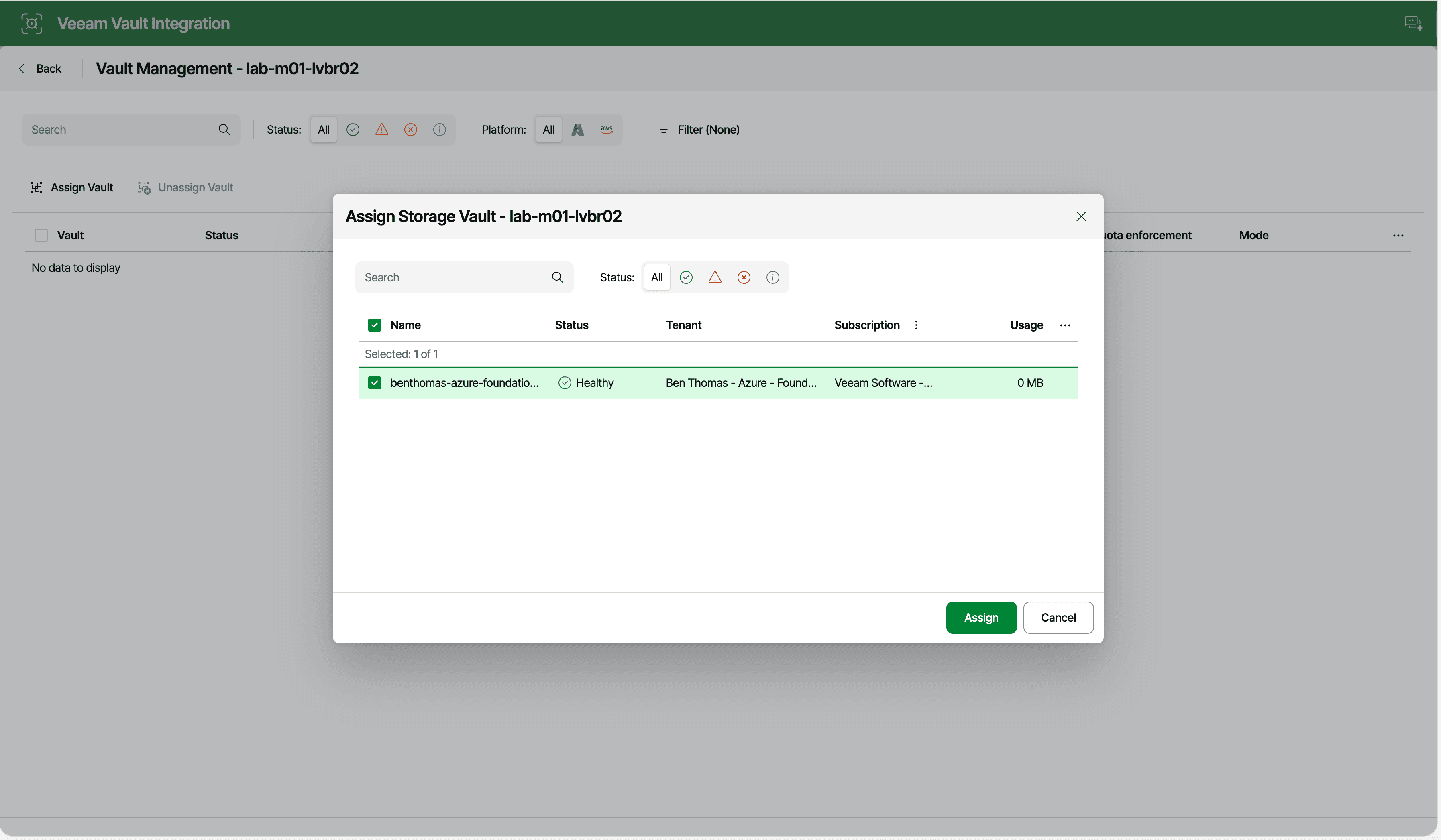
$outcome.StatusSelect the server on the Backup Servers page, click Vault Management, then Assign Vault.
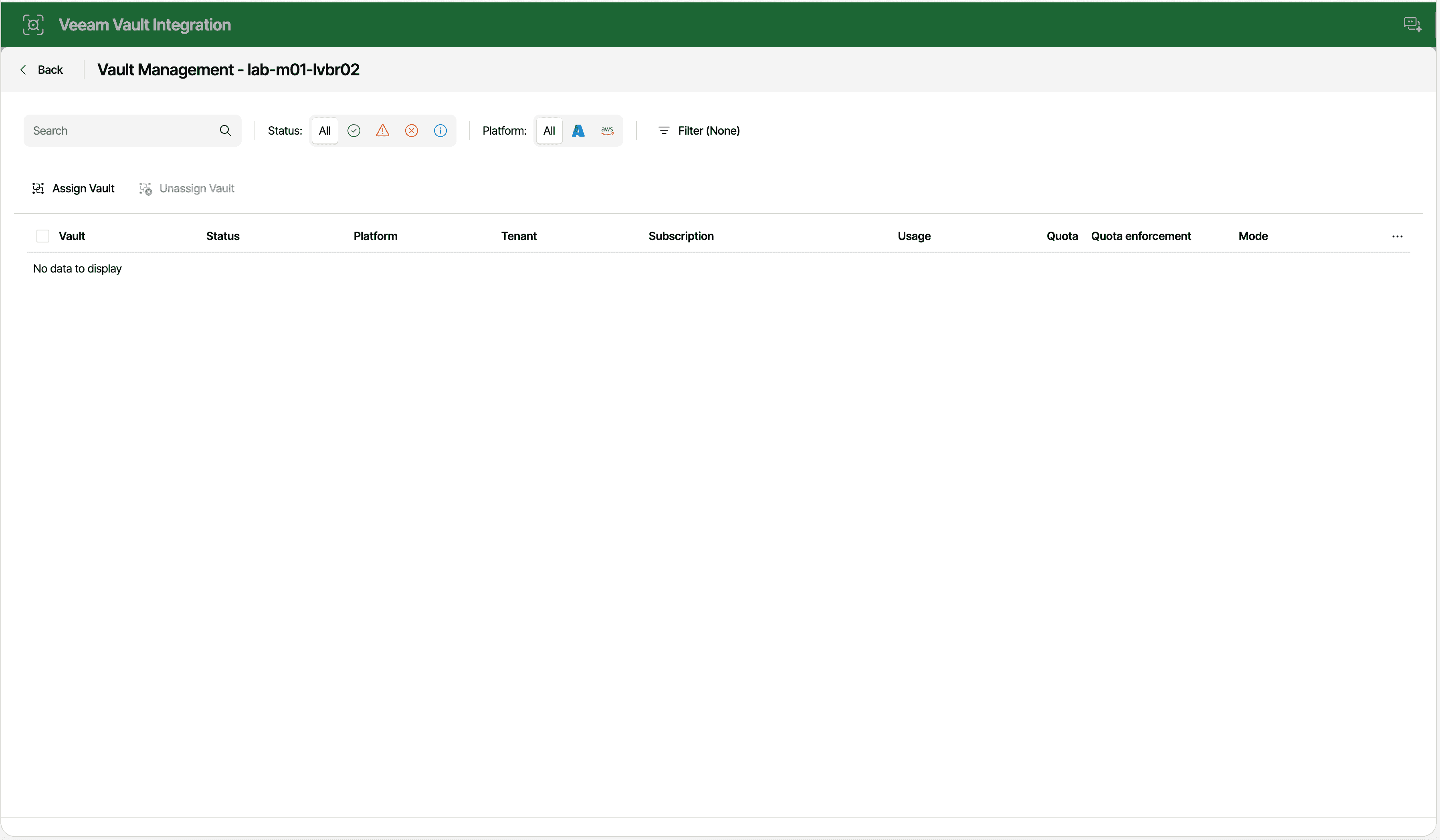
The picker only lists vaults from tenants mapped to the server’s company, which is the same rule behind the 400 below.
{}This one took around 25 seconds to finish, and the async result is an empty JSON object, the same as the mapping call in part 1. To confirm it worked, GET .../assignedVaults returns the full storage vault objects assigned to that server.
Two things will stop this call before it gets anywhere. If the server isn’t registered yet, you get a 520 with “Cannot perform the operation. The backup server is not registered in Veeam Data Cloud.” If the vault belongs to a VDC tenant that isn’t mapped to the VBR server’s VSPC company, you get a 400 with “Cannot perform the operation. The tenant associated with the vault is not mapped to the company managing this backup server.” Both come back straight away, without an async action.
Creating the Vault Folder#
Before VBR can write anything, the vault needs a folder inside its storage container. POST to .../assignedVaults/{vaultId}/folders with a JSON body that only has a name.
backupServerUid="83f1cba3-12dd-43cc-9be4-6d9dc5254042"
vaultId="eac14f91-0f1b-4716-9c27-993f419810fb"
curl -i -X 'POST' \
  "https://vspc.domain.example/api/v3/vdcVault/registeredBackupServers/${backupServerUid}/assignedVaults/${vaultId}/folders" \
  -H 'x-api-version: 3.6.2' \
  -H 'accept: application/json' \
  -H 'Content-Type: application/json' \
  -H 'Authorization: Bearer YOUR_REST_API_KEY' \
  -d '{ "name": "Backup" }'
$backupServerUid = "83f1cba3-12dd-43cc-9be4-6d9dc5254042"
$vaultId = "eac14f91-0f1b-4716-9c27-993f419810fb"
$folderUri = "https://vspc.domain.example/api/v3/vdcVault/registeredBackupServers/$backupServerUid/assignedVaults/$vaultId/folders"
$response = Invoke-WebRequest `
-Method POST `
-Uri $folderUri `
-ContentType "application/json" `
-Body (@{ name = "Backup" } | ConvertTo-Json) `
-Headers $headers
$outcome = Wait-VspcAction -Location $response.Headers.Location[0]
$outcome.Status # don't trust this on its own, check the folder list belowIn the web UI, the folder is a step in the New Repository wizard. The folder list comes from the same slow browse as the GET below.
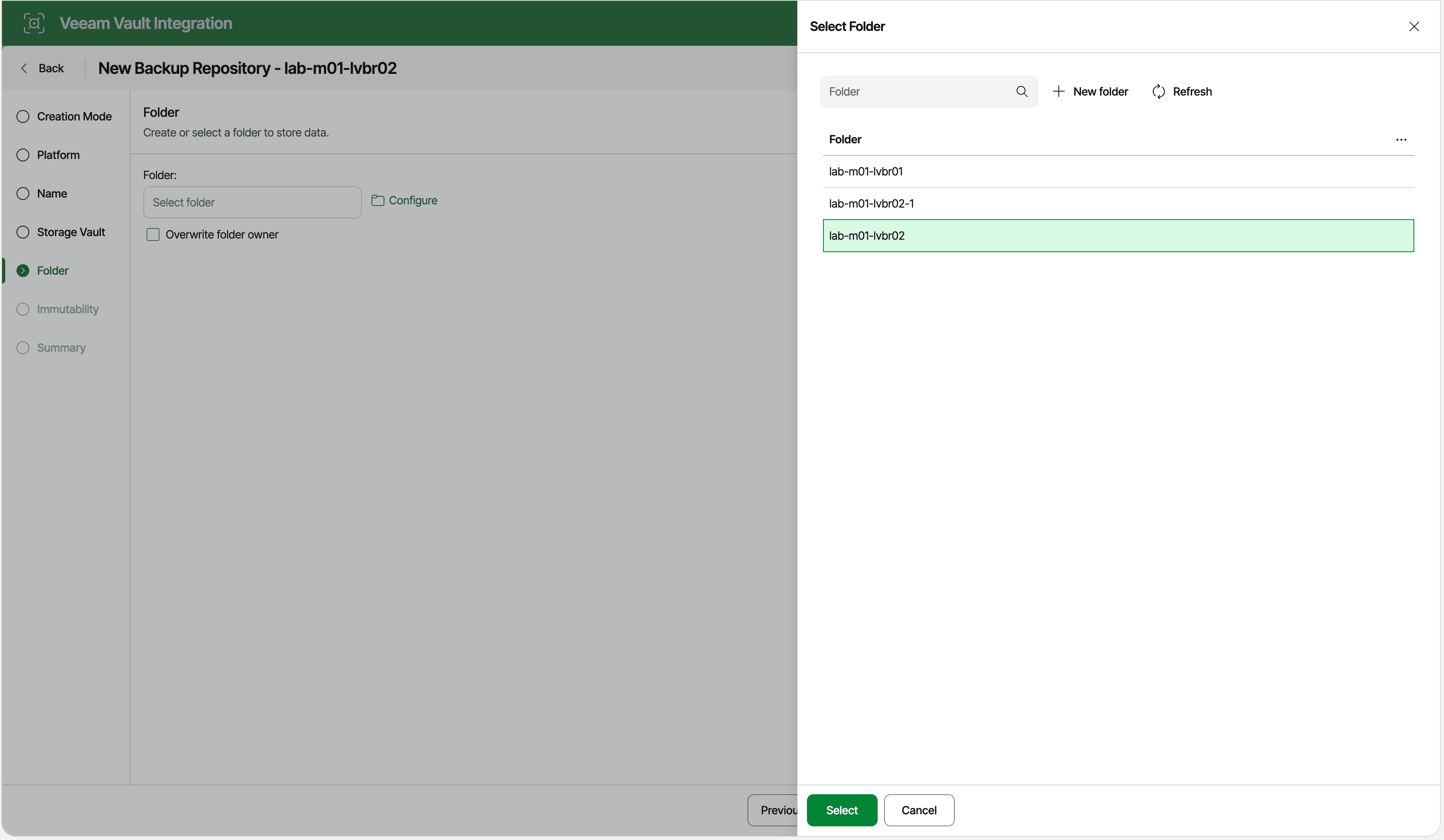
New folder only asks for a name, the same as the API body.
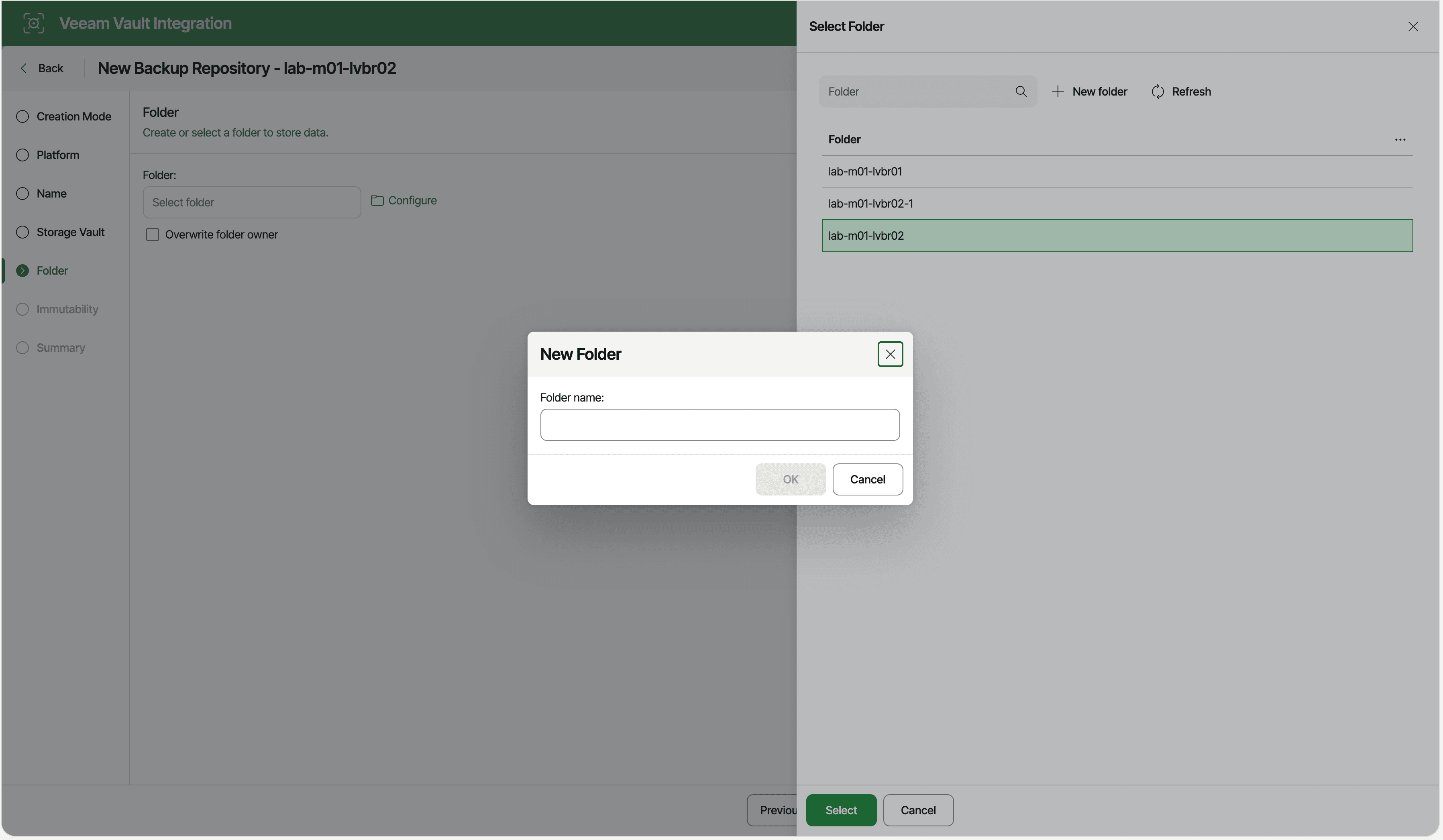
{
  "data": {
    "name": "Backup"
  }
}
When it works, it’s quick. My second folder on the same vault finished in about 20 seconds, and the result is just the folder name. My first folder didn’t go so smoothly, though. It reported failed but was created anyway (more on that in the gotchas).
So don’t take the action status at face value here. GET on the same path lists what’s in the vault’s storage container, and that’s the real check. Do this before the next step too, because the folder name here is exactly what the repository body expects in container.folder.
{
  "data": {
    "containerName": "immutable-vbr",
    "folders": ["Backup"]
  }
}
That GET is slow, because it goes through the VBR server to browse the vault, and it can come back as a 202 with its own async action instead of a 200. Handle both. Only retry the POST if the folder really isn’t in the list.
Creating the Repository in VBR#
This is the last call, and the only one that actually creates something inside VBR. It’s a POST to /infrastructure/backupServers/{backupServerUid}/repositories/veeamVault, and unlike the earlier ones it has a real payload.
The spec marks name, account and container as required, and inside those, account.vault.vaultId, account.vault.isInitialized and container.folder. Everything else is optional. A minimal body looks like this:
{
  "name": "ALPHA-VAULT-01",
  "description": "Veeam Data Cloud Vault repository for Alpha",
  "account": {
    "vault": {
      "vaultId": "eac14f91-0f1b-4716-9c27-993f419810fb",
      "isInitialized": true
    },
    "connectionSettings": {
      "connectionType": "Direct"
    }
  },
  "container": {
    "folder": "Backup",
    "immutability": {
      "isEnabled": true,
      "daysCount": 30,
      "immutabilityMode": "RepositorySettings"
    }
  }
}
That exact body worked first time against a fresh VBR 13.1 server. isInitialized is required, and true was the right value for a vault that had just been assigned, with a folder created a minute earlier.
container.folder is the folder name from the previous step, not a path. The vault ID is the same vaultId you assigned earlier.
The optional fields I’d look at:
connectionTypeisDirectorSelectedGateway. WithSelectedGatewayyou passgatewayServerIdsas well. The spec says that property is null withDirect, but see the gotchas.immutabilityModeisRetentionSettingsorRepositorySettings.RetentionSettingskeeps backups immutable for their whole retention period, and it’s the web UI’s default and recommended option.RepositorySettingsonly keeps them immutable fordaysCountdays, which is what I used in the examples.storageConsumptionLimitis a soft limit, withconsumptionLimitKindset toTBorPB.mountServeris optional. If you leave it out, VBR picks one. On my Linux-based VBR server that was a Linux mount server with vPower NFS turned on.taskLimitEnabledandmaxTaskCountare optional too, but check what you get. Leaving them out gave metaskLimitEnabled: falseandmaxTaskCount: 2, which isn’t what my older repos had. Set them explicitly if you care about concurrency.overwriteOwner,importBackupandimportIndexare optional query parameters. The import ones default tofalse.
I keep the body in a file for curl, and build it as a hashtable in PowerShell. Note the -Depth on ConvertTo-Json. The default depth of 2 would flatten account.vault and container.immutability into strings.
backupServerUid="83f1cba3-12dd-43cc-9be4-6d9dc5254042"
# repo.json holds the body shown above
curl -i -X 'POST' \
  "https://vspc.domain.example/api/v3/infrastructure/backupServers/${backupServerUid}/repositories/veeamVault" \
  -H 'x-api-version: 3.6.2' \
  -H 'accept: application/json' \
  -H 'Content-Type: application/json' \
  -H 'Authorization: Bearer YOUR_REST_API_KEY' \
  -d @repo.json
$backupServerUid = "83f1cba3-12dd-43cc-9be4-6d9dc5254042"
$body = @{
name = "ALPHA-VAULT-01"
description = "Veeam Data Cloud Vault repository for Alpha"
account = @{
vault = @{
vaultId = "eac14f91-0f1b-4716-9c27-993f419810fb"
isInitialized = $true
}
connectionSettings = @{ connectionType = "Direct" }
}
container = @{
folder = "Backup"
immutability = @{
isEnabled = $true
daysCount = 30
immutabilityMode = "RepositorySettings"
}
}
} | ConvertTo-Json -Depth 5 # default depth of 2 would mangle the nested objects
$response = Invoke-WebRequest `
-Method POST `
-Uri "https://vspc.domain.example/api/v3/infrastructure/backupServers/$backupServerUid/repositories/veeamVault" `
-ContentType "application/json" `
-Body $body `
-Headers $headers
$outcome = Wait-VspcAction -Location $response.Headers.Location[0]
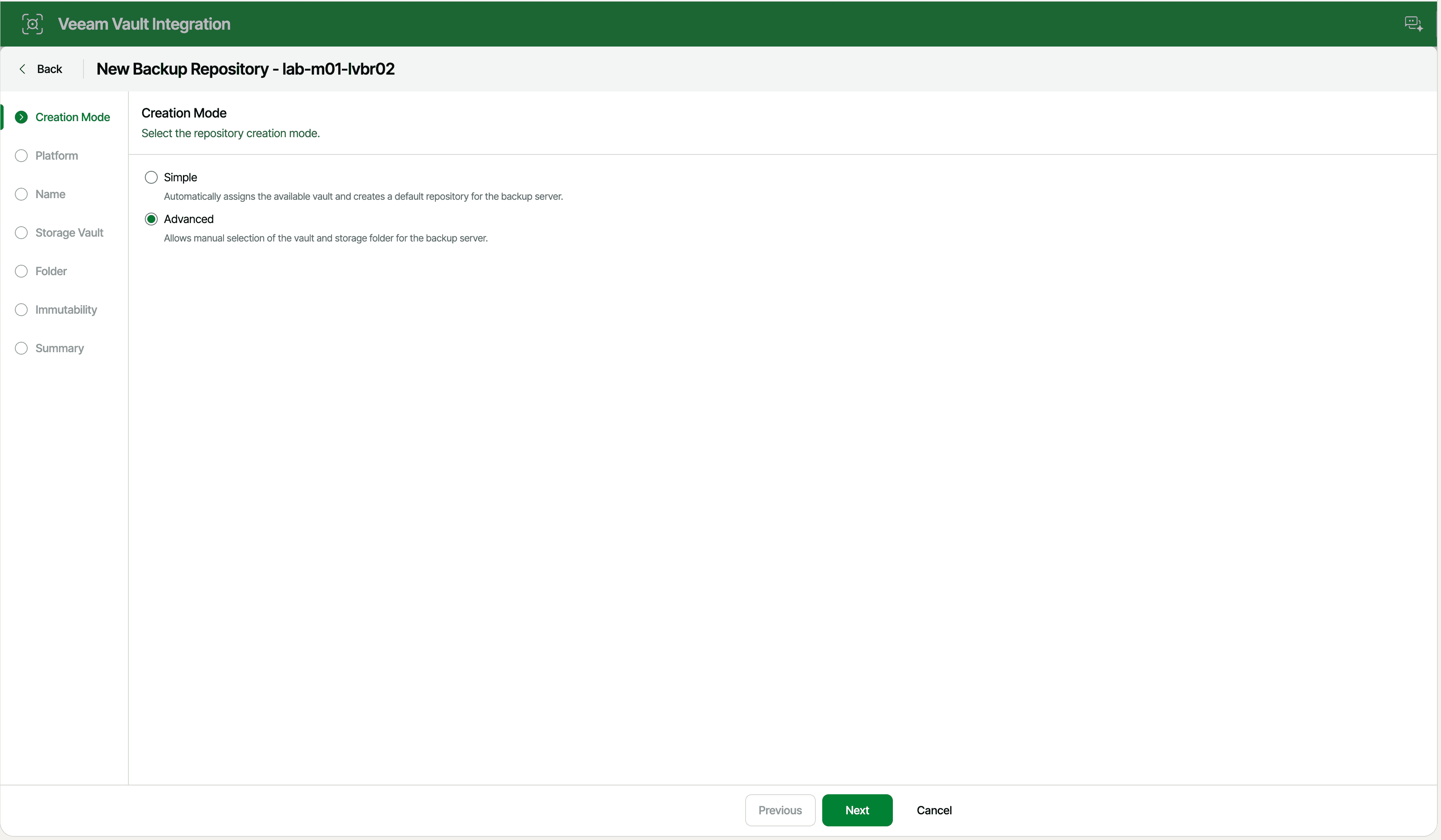
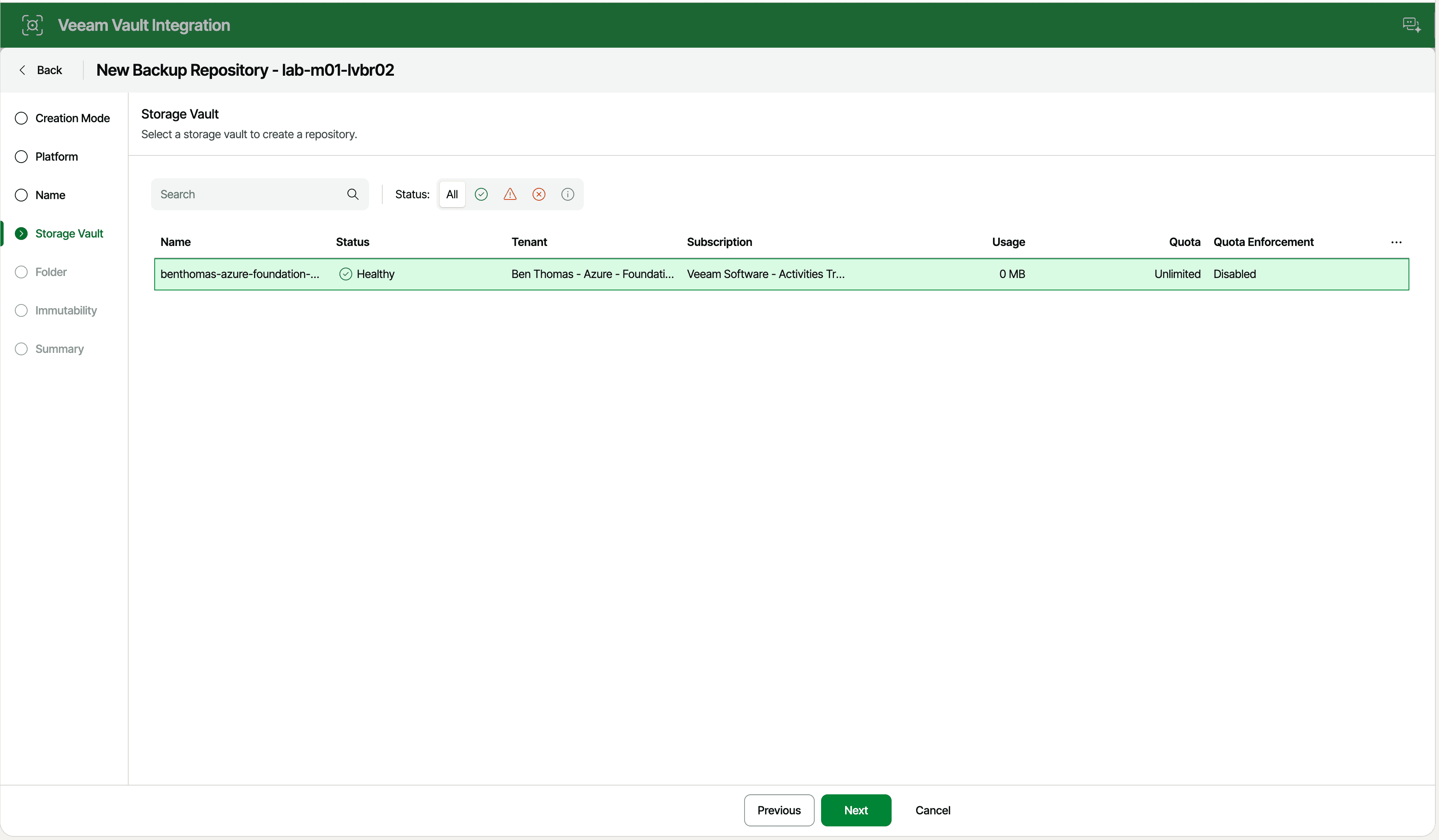
$outcome.Result.data.instanceUidIn the web UI, this is the New Repository wizard. Simple mode picks the vault and a default repository for you, so I used Advanced. Advanced only lists vaults that are already assigned to the server, which is why the assignment comes first.
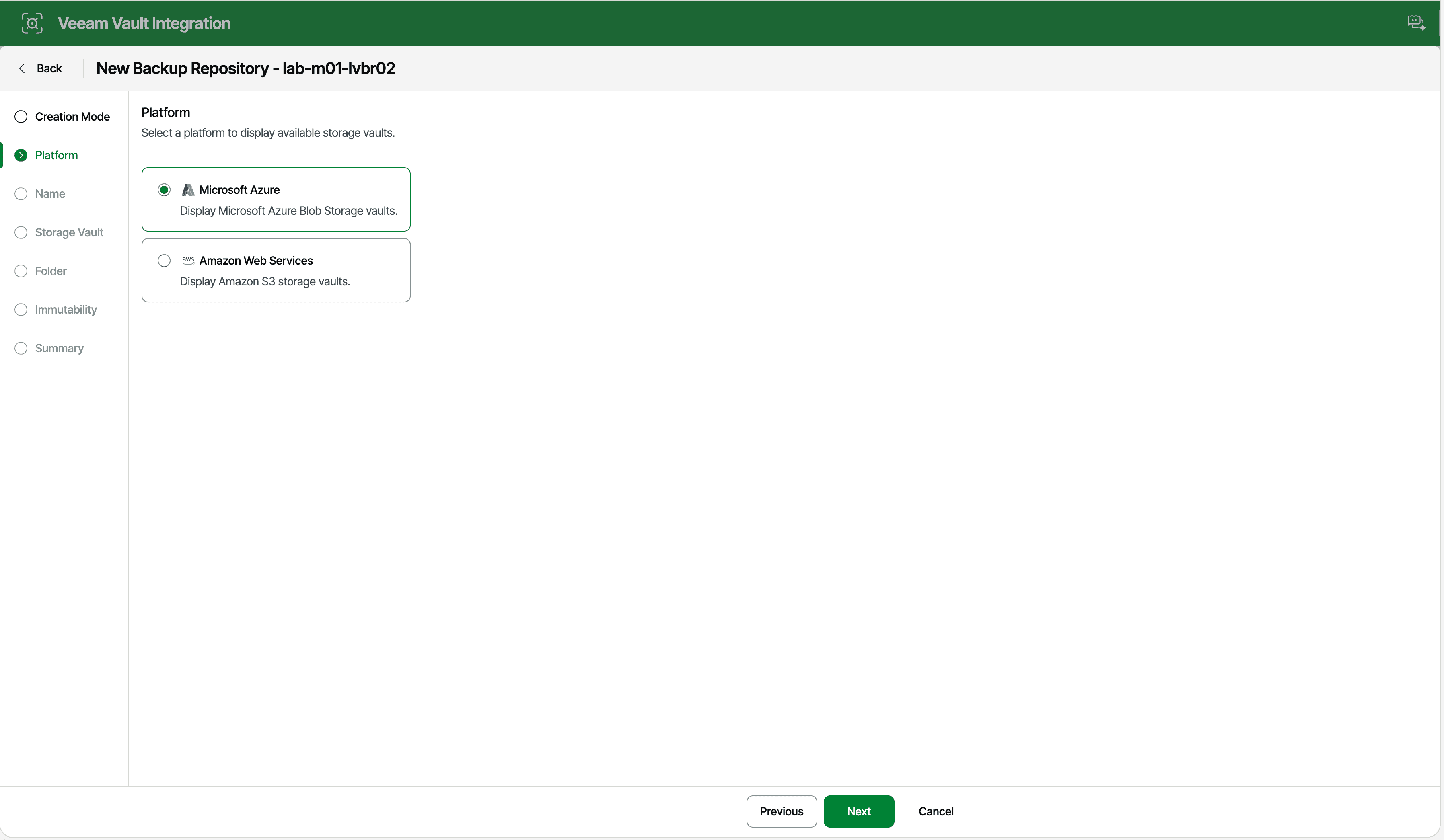
The Platform step only filters the vault list. The API doesn’t need it, because you pass the vaultId directly.
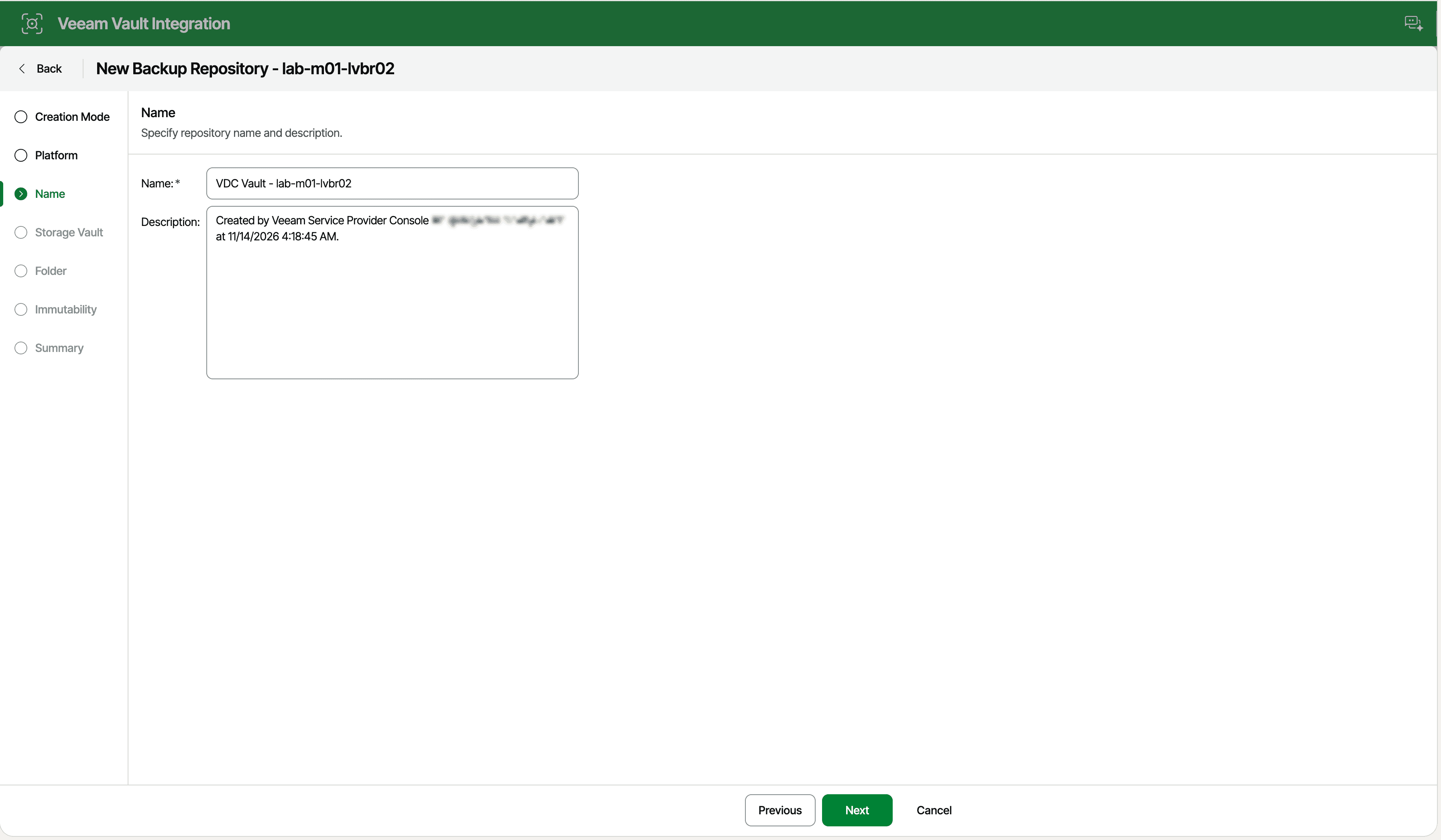
The name defaults to something generic like “Object storage repository 1”, so you have to remember to change it every time.
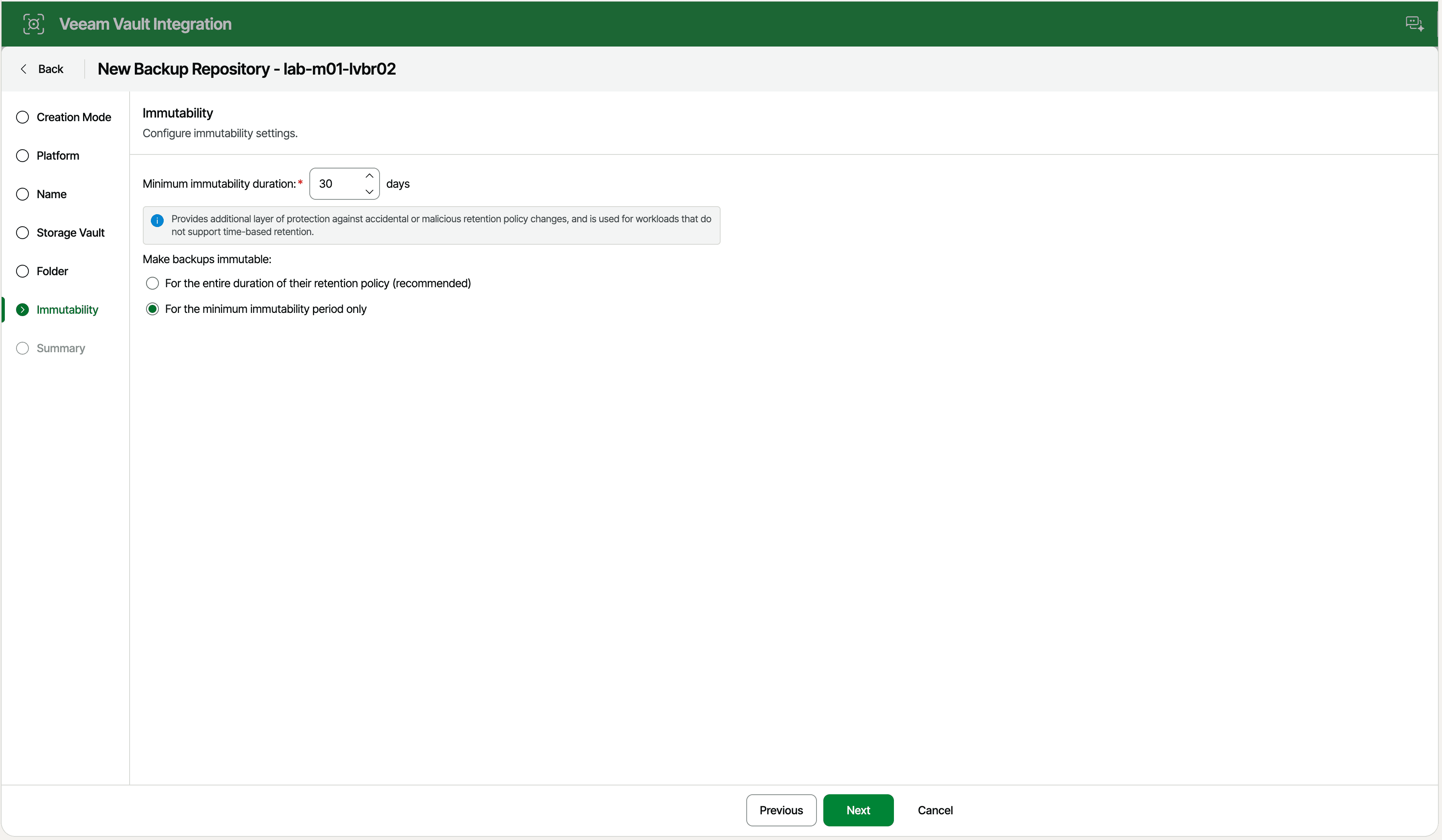
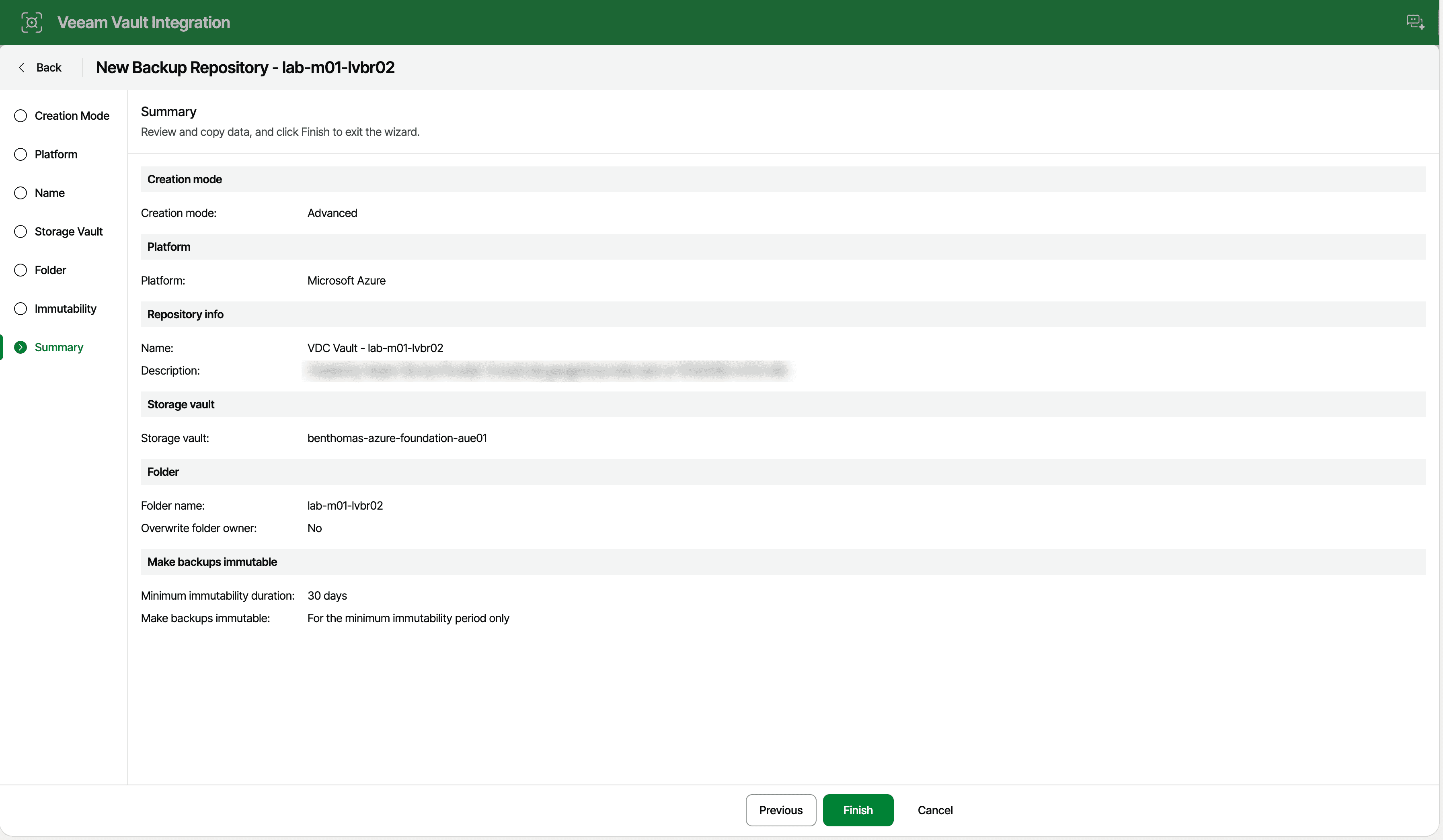
The folder step comes next (see the previous section), then immutability. The wizard defaults to the recommended retention-based option, so I changed it to match the RepositorySettings body above.
{
  "data": {
    "instanceUid": "0b1c54f8-30b6-4eac-8a59-540d3d132efc",
    "description": "Veeam Data Cloud Vault repository for Alpha",
    "name": "ALPHA-VAULT-01",
    "uniqueId": "0B1C54F830B64EAC8A59540D3D132EFC",
    "taskLimitEnabled": false,
    "maxTaskCount": 2,
    "mountServer": {
      "type": "Linux",
      "windows": null,
      "linux": {
        "mountServerId": "6745a759-2205-4cd2-b172-8ec8f7e60ef8",
        "vPowerNFSEnabled": true,
        "writeCacheFolder": "/var/lib/veeamdata/veeam/IRCache/",
        "vPowerNFSPortSettings": null
      }
    },
    "account": {
      "vault": {
        "vaultId": "eac14f91-0f1b-4716-9c27-993f419810fb",
        "vaultName": "ALPHA-VAULT-01 - (Foundation - Core)",
        "storageContainerName": "immutable-vbr",
        "isInitialized": true,
        "folders": []
      },
      "connectionSettings": {
        "connectionType": "Direct",
        "gatewayServerIds": [
          "6745a759-2205-4cd2-b172-8ec8f7e60ef8"
        ]
      }
    },
    "container": {
      "folder": "Backup",
      "storageConsumptionLimit": {
        "consumptionLimitCount": 10,
        "isEnabled": false,
        "consumptionLimitKind": "TB"
      },
      "immutability": {
        "isEnabled": true,
        "daysCount": 30,
        "immutabilityMode": "RepositorySettings"
      }
    },
    "_embedded": null
  }
}
The repository took about 80 seconds to create. The instanceUid in the result is the repository’s ID in VBR, and it’s what you’d point backup jobs at. GET /infrastructure/backupServers/{backupServerUid}/repositories/{repositoryUid}/veeamVault returns the same object later, after the async result has expired.
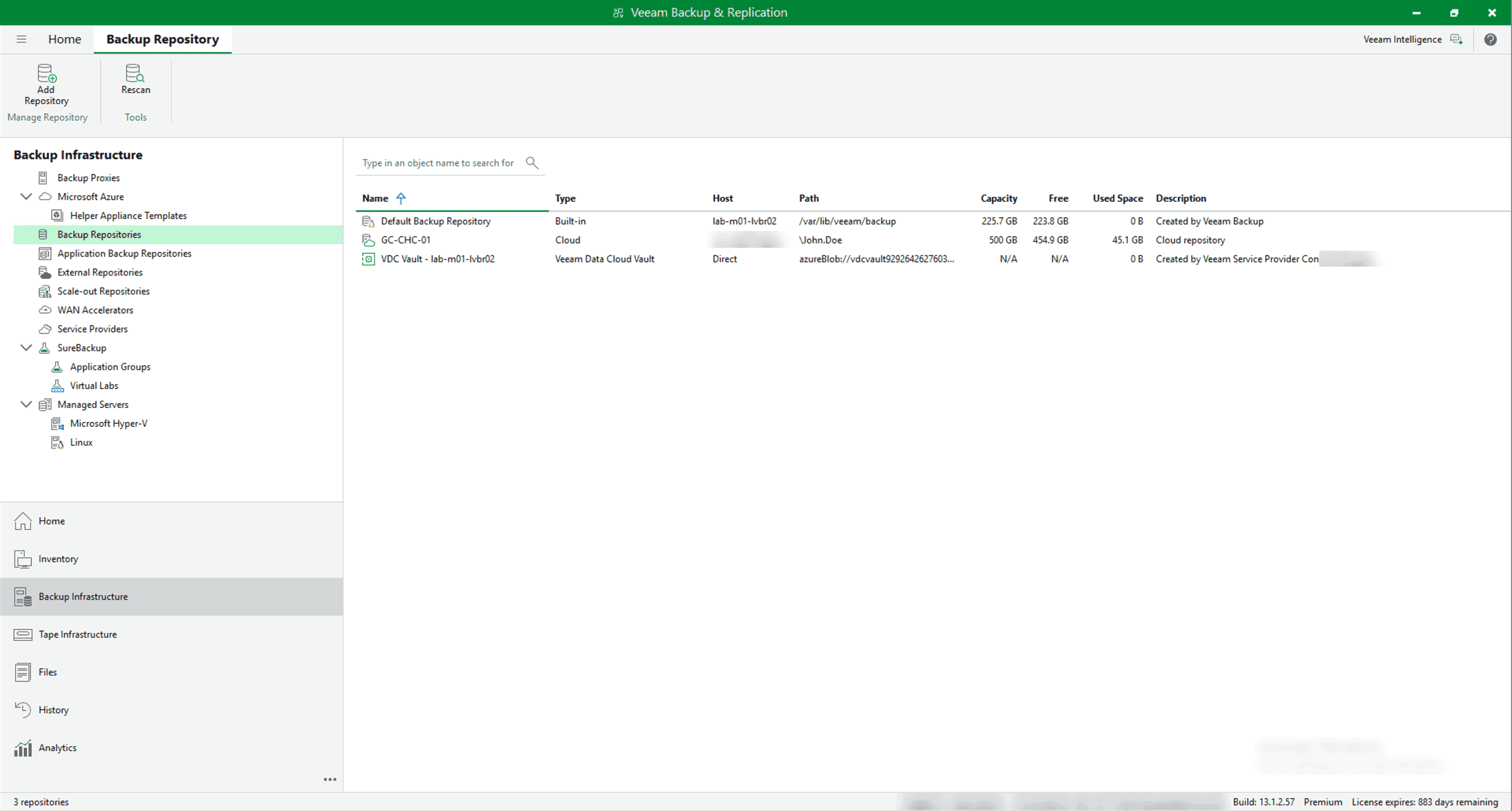
To compare, I also created the same repository with the web UI wizard. Apart from the IDs and description, the API returned identical settings for both, including the task limits, connection type and mount server. The wizard doesn’t set anything the minimal body leaves out.
Gotchas#
Async results expire#
VSPC only keeps a finished action’s result for a short time. My server’s GET /asyncActions/config reports resultRetentionTime: 300, and my successful actions had all returned a 404 (“Cannot find AsyncAction with ID …”) within a few minutes. Collect the result as soon as the status changes. If you miss it, use the matching GET to read the server, vault, folder or repository back instead.
“Failed” doesn’t always mean nothing happened#
The first folder I created ran for about two and a half minutes, then the action reported failed with this result:
{
  "errors": [
    {
      "message": "Failed to create a folder in the storage vault.",
      "type": "unspecified",
      "code": 500
    }
  ]
}
The folder had been created anyway. That was the first folder on a server I’d registered and assigned the vault to only a few minutes earlier. I created a second folder on the same vault about 20 minutes later, and it succeeded in around 20 seconds, so I couldn’t reproduce it. My guess is that the first operation through a newly registered server took long enough to hit a timeout inside VSPC while VBR carried on and finished the job, but one failure isn’t enough to be sure.
Either way, if a script retries every failed action, check the real state with a GET first, or you’ll be chasing problems that aren’t there.
Don’t match on status codes#
VSPC uses HTTP 520 for a lot of errors that aren’t server faults. Assigning a vault to an unregistered server, browsing folders on an unsupported VBR version and the false folder failure above all came back as 520, with a code of 500 in the body. The tenant mapping problem was a plain 400. Read the message in the errors array rather than branching on the status alone.
Filters must be a JSON array#
The filter parameter has to be a JSON array, even with one condition. In PowerShell, $obj | ConvertTo-Json quietly unwraps a single-item array into a bare object, and VSPC rejects it with a 400 and “The specified filtering options are not supported or incorrect.” Use ConvertTo-Json -InputObject $obj instead, which keeps the brackets.
Not every endpoint supports filter. GET /vdcVault/storageVaults only takes tenantUid, and if you pass a filter anyway, it’s silently ignored. You get a 200 with every vault you manage (173 in my lab), so it looks like the filter worked until you count the results.
Unsupported VBR versions fail late#
An unsupported server can still appear as registered with vaults assigned, so in my lab the first call to show the problem was the folder browse, which goes all the way down to the vault through VBR. Against my VBR 12.3 server, below the 13.0.1.2067 minimum, every assigned vault returned this:
{
  "errors": [
    {
      "message": "Failed to browse folders in the storage vault.",
      "type": "unspecified",
      "code": 500
    }
  ]
}
The HTTP status was 520, and the error doesn’t mention the version, so check the version up front rather than trying to decode this later.
Folder browsing is slow#
Even on a supported server, the folder browse takes a while. I ran it twice against all ten vaults assigned to my VBR 13.1 server, and every call succeeded with the same folders each time, but each one took between 30 and 90 seconds. The AWS vaults were the quickest, and the Azure ones mostly took over a minute. The call has to reach through VBR to the vault and list the container, and that time adds up quickly if you’re looping over a lot of vaults.
Give it a generous timeout (-m 150 in curl, -TimeoutSec 150 in PowerShell) rather than a tight one, or slow responses will look like failures. Be ready for it to come back as a 202 with an async action too. It did that every time on my newer VBR server, and finished in 10 to 15 seconds, while the older one always answered directly. If you’re onboarding in bulk, only browse the vault you’re about to create a repository on.
Direct connections still list gateways#
The spec says gatewayServerIds is null when connectionType is Direct. Every Vault repo in my lab reads back as Direct with a populated list of gateway IDs, including the one I created for this post with no gateways in the body. Don’t use that field to work out which mode a repository is in. Read connectionType.
Putting the Whole Chain Together#
Across both posts, a customer goes from a company record in VSPC to a Vault repository on their own VBR server in 11 calls. Here’s the full sequence with the IDs each call needs and returns.
| # | Part | Call | Needs | Gives you |
|---|---|---|---|---|
| 1 | 1 | GET /organizations | Customer name | organizationUid |
| 2 | 1 | GET /vdcVault/subscriptions | Nothing | subscriptionUid |
| 3 | 1 | POST /vdcVault/tenants | subscriptionUid, tenant name | tenantUid |
| 4 | 1 | POST /vdcVault/tenants/{tenantUid}/mapping | tenantUid, organizationUid | Nothing |
| 5 | 1 | GET /vdcVault/subscriptions/{subscriptionUid}/countries | subscriptionUid | dataCenterId |
| 6 | 1 | POST /vdcVault/storageVaults | tenantUid, dataCenterId, vault name | vaultId |
| 7 | 2 | GET /infrastructure/backupServers | organizationUid | backupServerUid |
| 8 | 2 | POST /vdcVault/registeredBackupServers | backupServerUid | Nothing |
| 9 | 2 | POST .../{backupServerUid}/assignedVaults | backupServerUid, vaultId | Nothing |
| 10 | 2 | POST .../assignedVaults/{vaultId}/folders | backupServerUid, vaultId, folder name | Folder name |
| 11 | 2 | POST /infrastructure/backupServers/{backupServerUid}/repositories/veeamVault | backupServerUid, vaultId, folder name | Repository instanceUid |
The organizationUid from call 1 links the two parts. You use it to find the customer’s VBR server in call 7, and the mapping in call 4 is why the assignment in call 9 works. Skip the mapping and call 9 fails with the 400 from earlier. The vaultId from call 6 is used in each of the last three calls.
What’s Next#
The customer now has a Vault repository in VBR, but nothing is writing to it yet. A backup job or backup copy job still has to target it, and that’s a separate step. Before you create one, check the task limits on the new repository. Mine came through with taskLimitEnabled: false and maxTaskCount: 2. It’s also still on you to keep unsupported VBR servers out of the flow, because VSPC won’t stop you.
I’m looking at turning these 11 calls into a single onboarding script that’s safe to rerun, which may end up as part 3.