Veeam Data Cloud (VDC) Vault gives you off-site storage that’s always encrypted and immutable, integrated directly into Veeam Backup & Replication (VBR). But as with any service provider solution, scale and integration into existing tooling can mean the difference between a must-have service and a “wish-we-could-have” service. With Veeam Service Provider Console (VSPC) v9.2, the new Vault Plugin enables just that, deep integration into your existing Veeam environments and a realistic way to scale implementations across your customer base.
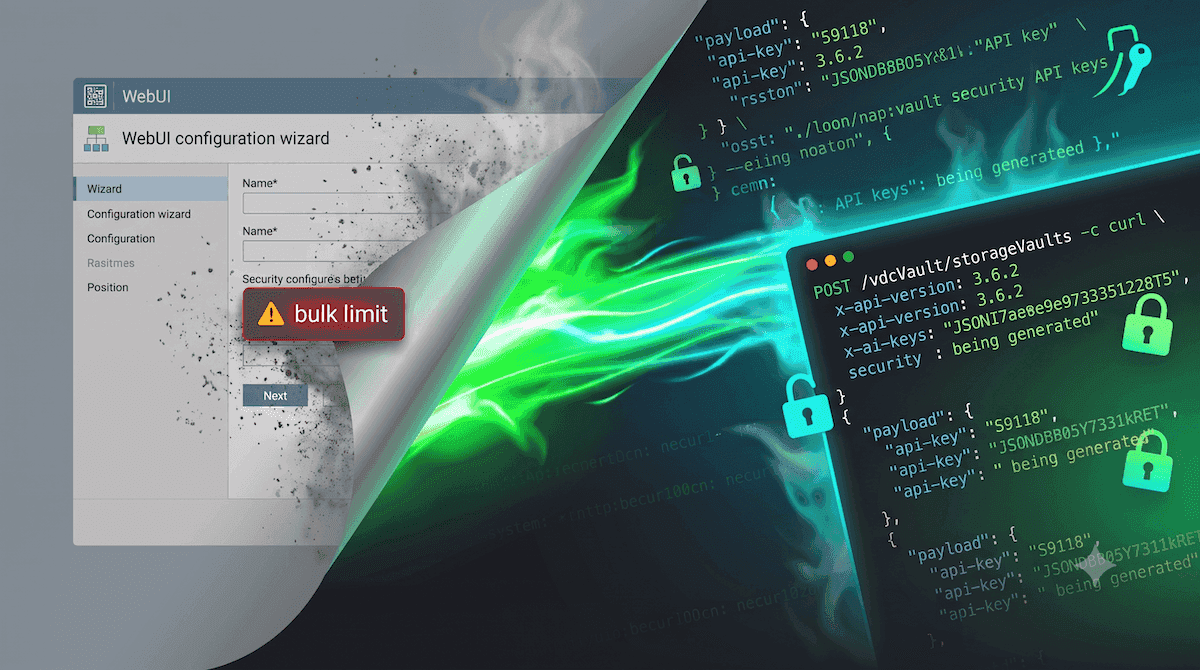
The workflows for creating VDC Vault tenancies, mapping them through to VSPC customers, provisioning storage vaults, and creating VBR backup repositories are all handled entirely through the Web UI. It even includes the ability to perform these as bulk operations across multiple customers simultaneously. I’m not going to dive deep into the Web UI mechanics in this post, but if you haven’t seen it yet, I highly recommend checking out Brandon McCoy’s walkthrough.
However, most service providers I’ve worked with quickly realise there are limitations to these native bulk actions. Specifically, you lose granular control over the naming conventions of tenancies and storage vaults, which automatically default to the exact names of the customers configured in VSPC. This can break things if you rely on strict naming standards, like using corporate shortcodes, where a storage vault for Microsoft needs to be explicitly named MSFT-Vault01 instead of a generic string.
The REST API is where that control comes back. As I started digging into the VSPC API, I discovered that every single action for Vault has a corresponding API endpoint available. Everything you handle in the Web UI wizard can be fully automated through a REST endpoint, giving you total control over naming conventions and step-by-step automation. Let’s dive into how it works.
The Dependency Chain#
Before stepping through each call individually, it’s worth understanding why they must happen in a specific order.
The Vault plugin reflects VDC’s view of subscriptions, cloud tenants, and storage vaults as separate objects with hard dependencies between them. For instance, you can’t create a storage vault without a tenant UID to attach it to, and you can’t map a cloud tenant to a local company record without both a cloud tenant UID and a VSPC organization UID. The subscription also governs which Azure regions are available, so you need to resolve it before you can specify a target data center.
flowchart LR
    sub["GET subscriptions"]
    tenant["POST create tenant"]
    org["GET organization"]
    map["POST mapping"]
    regions["GET data centers"]
    vault["POST create vault"]

    sub -->|subscriptionUid| tenant
    sub -->|subscriptionUid| regions
    org -->|organizationUid| map
    tenant -->|tenantUid| map
    tenant -->|tenantUid| vault
    regions -->|dataCenterId| vault
Fortunately, two of these lookups, fetching the VSPC organization and fetching available data centers, have no dependency on each other. Both can run concurrently while the tenant creation call is still in flight. If you’re writing a script where provisioning speed matters, those two GET calls are perfect candidates to fire in parallel.
The Flow at a Glance#
If you want the quick picture before diving into the details, here’s the complete set of calls in order.
Find VSPC Company GUID
Step 1
GET /organizations
Input: Target Customer Name
Output: instanceUid (Company GUID)Find Vault Subscription GUID
Step 2
GET /vdcVault/subscriptions
Input: null
Output: instanceUid (Subscription GUID), Subscription Name, Edition, Type and StatusCreate New VDC Vault Tenant
Step 3
POST /vdcVault/tenants
Input: TenantName, SubscriptionUid
Output: instanceUid (Tenant GUID)Map VDC Vault Tenancy
Step 4
POST /vdcVault/tenants/{tenantId}/mapping
Input: TenantUid, OrganizationUid
Output: nullIdentify Deployment Region
Step 5
GET /vdcVault/subscriptions/{subId}/countries
Input: SubscriptionUid
Output: Country Name, Data Center Name, DataCenterIdProvision Storage Vault
Step 6
POST /vdcVault/storageVaults
Input: TenantUid, DataCenterId, Storage Vault Name, Storage Quota
Output: instanceUid (Storage Vault GUID)
If that’s enough to get you started, the VSPC REST API reference has the full schema for each endpoint. But if you want to see exactly what the requests and responses look like, and where the API might catch you out, keep reading.
Laying the Groundwork for Authentication#
Before we start throwing payloads at these endpoints, we need a clean way to authenticate. Now, you could authenticate using a standard username and password, but hopefully, you have MFA enabled on your administrative accounts, meaning a basic interactive login won’t work for automation scripts. Fortunately, VSPC offers a shortcut for this, Static REST API Keys.
By generating a persistent API key directly inside the interface, you can drop a single, unchanging bearer token right into your API calls. This eliminates the need to disable MFA on service accounts and removes the headache of managing short-lived token lifetimes and refresh loops.
Snagging Your API Key#
To grab a key, hop into the VSPC WebUI:
- Navigate to the Configuration area using the gear icon.
- Under the Security menu on the left sidebar, click Access Management.
- Head over to the REST API Keys tab, click + New, and select Simple Key.
Once it spits out the string, copy it immediately and treat it like a password (shove it in your environment variables or a secure password vault).
From here on out, every single HTTP request we make to the control plane will use a consistent header layout:
- x-api-version:
3.6.2 - accept:
application/json - Authorization:
Bearer <Your_Static_API_Key>
Locating the VSPC Organization ID#
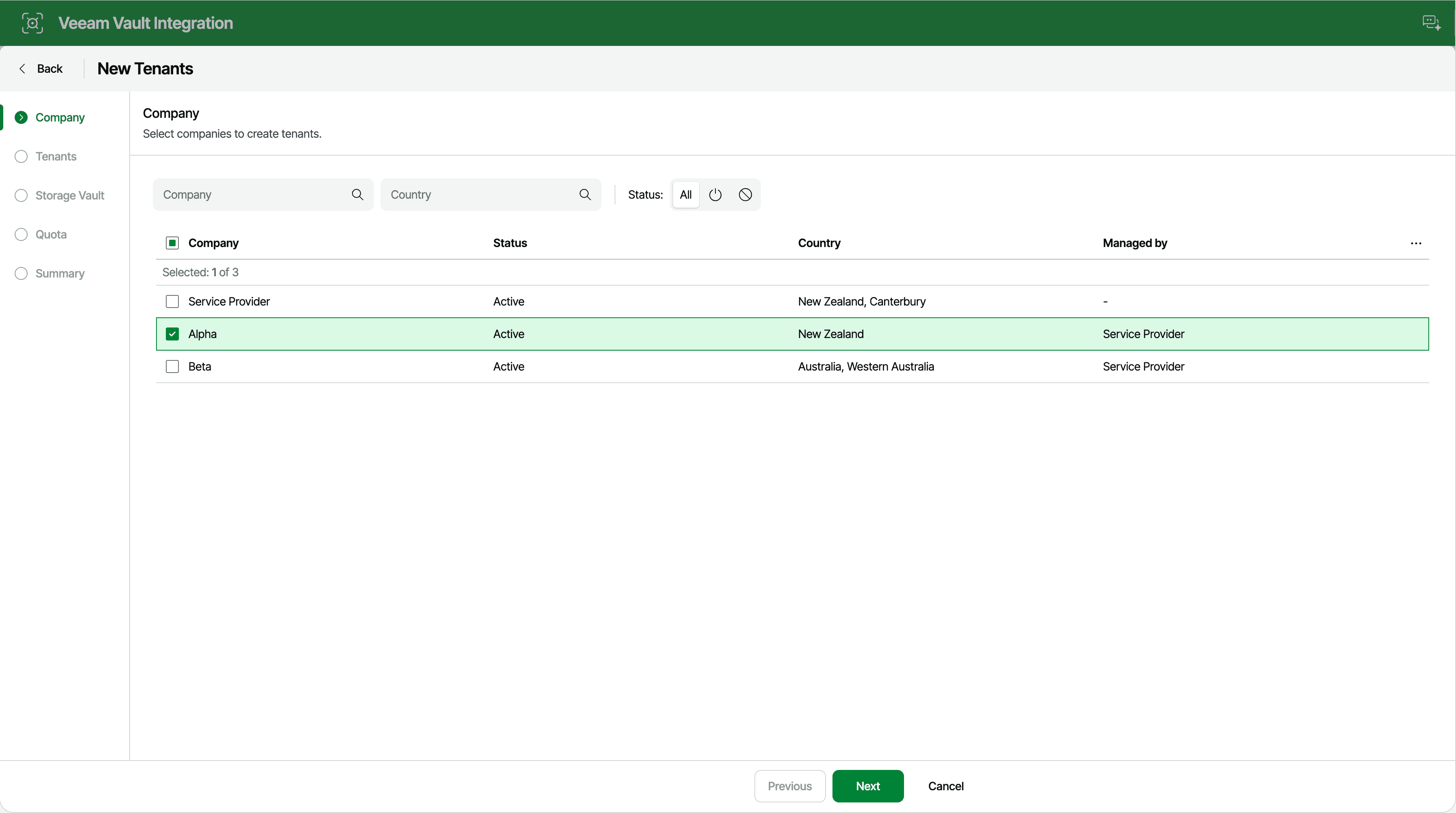
With our basic headers and authentication out of the way, let’s start pulling together the information we need. If we map the API workflow to the native Web UI process, the first step is to identify the VSPC companies we want to create VDC tenants for.
In the UI, you are given a company picker list. In the API, we can query the /organizations endpoint to return a list of all managed companies. If you are a large provider running hundreds of client records, you will definitely want to filter down your query to reduce the response payload size.
VSPC handles this through a highly structured JSON array embedded inside the filter query parameter. It’s an unusual style choice for a REST API. For example, if we wanted to query specifically for a company named “Alpha”, our filter array would look like this:
[
  {
    "property":"name",
    "operation":"equals",
    "collation":"ignorecase",
    "value":"Alpha"
  }
]
Collapse that array down and URL-encode it right into your endpoint path. By explicitly throwing "collation": "ignorecase" into your filtering metadata, you ensure your automated provisioning line doesn’t snap just because someone accidentally passed a lowercase “alpha” into an onboarding script.
json='[{"property":"name","operation":"equals","collation":"ignorecase","value":"Alpha"}]'
encoded=$(printf '%s' "$json" | jq -sRr @uri)
curl -X 'GET' "https://vspc.domain.example/api/v3/organizations?filter=${encoded}" \
  -H 'x-api-version: 3.6.2' \
  -H 'accept: application/json' \
  -H 'Authorization: Bearer YOUR_REST_API_KEY'
$obj = @(
[ordered]@{
property = "name"
operation = "equals"
collation = "ignorecase"
value = "Alpha"
}
)
$json = $obj | ConvertTo-Json -Compress
$encoded = [Uri]::EscapeDataString($json)
Invoke-RestMethod `
-Method GET `
-Uri "https://vspc.domain.example/api/v3/organizations?filter=$encoded" `
-Headers @{
"accept" = "application/json"
"x-api-version" = "3.6.2"
"Authorization" = "Bearer YOUR_REST_API_KEY"
}
The key piece of information we need from this response is the instanceUid. We will use this GUID later when we map our newly created VDC tenant to the local VSPC company record.
{
  "meta": {
    "pagingInfo": {
      "total": 1,
      "count": 1,
      "offset": 0
    }
  },
  "data": [
    {
      "instanceUid": "dc2e0aa8-4b32-407d-b511-b1c6cc62f30c",
      "name": "Alpha",
      ...
    }
  ]
}
{
"meta": {
"pagingInfo": {
"total": 1,
"count": 1,
"offset": 0
}
},
"data": [
{
"instanceUid": "dc2e0aa8-4b32-407d-b511-b1c6cc62f30c",
"name": "Alpha",
"alias": "Alpha",
"type": "Company",
"taxId": "123-456-789",
"email": "[email protected]",
"phone": "+642345678901",
"country": null,
"state": null,
"countryName": "New Zealand",
"regionName": "Canterbury",
"city": "Christchurch",
"street": "",
"locationAdmin0Code": "nz",
"locationAdmin1Code": "nz-ca",
"locationAdmin2Code": "",
"notes": "",
"zipCode": "",
"website": "alpha.com",
"veeamTenantId": "VT-12345",
"companyId": "GC-001"
}
]
}Resolving Your VDC Vault Subscriptions#
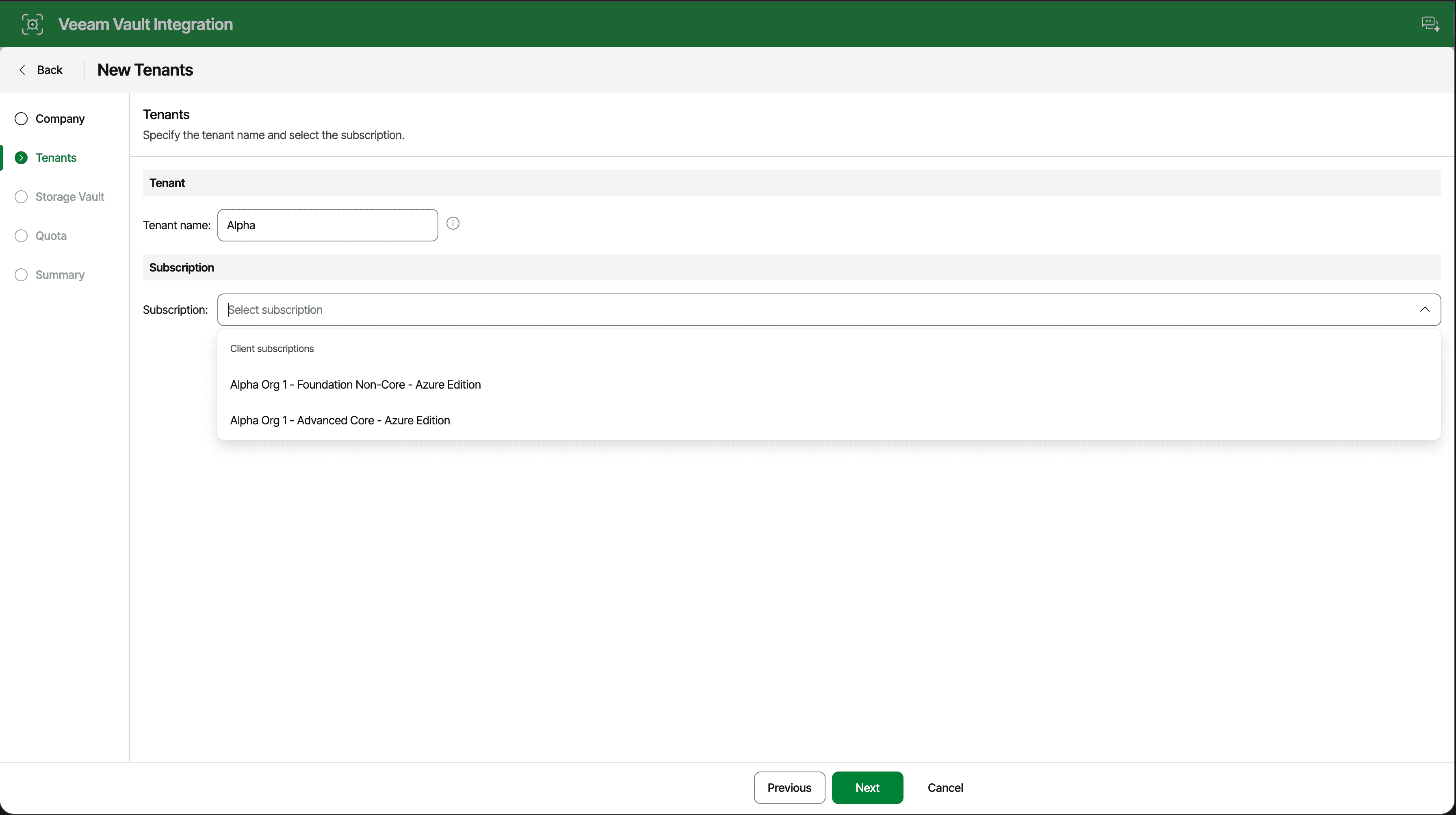
With our customer organization identified, we need to select the VDC Vault subscription we have assigned to our customer. This step determines whether you are mapping a customer to a Vault Foundation or an Advanced Edition tier, depending on their recovery needs and the specific service level you are providing.
This mirrors part of Step 2 in the Web UI wizard, except the /vdcVault/subscriptions API actually exposes significantly more detail. While the Web UI only shows basic display names, the API returns dedicated fields for edition and type to allow for programmatic filtering.
Just like the company query in Step 1, you can apply inline filters directly to this request if you need to narrow down contracts to a specific edition type or cloud backend.
curl -X 'GET' \
  'https://vspc.domain.example/api/v3/vdcVault/subscriptions' \
  -H 'x-api-version: 3.6.2' \
  -H 'accept: application/json' \
  -H 'Authorization: Bearer YOUR_REST_API_KEY'
Invoke-RestMethod `
-Method GET `
-Uri "https://vspc.domain.example/api/v3/vdcVault/subscriptions" `
-Headers @{
"x-api-version" = "3.6.2"
"accept" = "application/json"
"Authorization" = "Bearer YOUR_REST_API_KEY"
}
The crucial element to pull from this response block is the instanceUid. We will supply this ID as the parent subscription when provisioning our tenant in the next step.
{
  "data": [
    {
      "instanceUid": "8e3802c4-97d7-5a9d-ae58-0f194ef29825",
      "name": "Alpha Org 1 - Foundation Non-Core - Azure Edition",
      "edition": "FoundationNonCore",
      ...
    },
    ...
  ],
  "meta": {
    "pagingInfo": {
      "total": 2,
      "count": 2,
      "offset": 0
    }
  }
}
{
"data": [
{
"instanceUid": "8e3802c4-97d7-5a9d-ae58-0f194ef29825",
"name": "Alpha Org 1 - Foundation Non-Core - Azure Edition",
"edition": "FoundationNonCore",
"type": "Azure",
"status": "Active",
"managedOrganizationType": "Client"
},
{
"instanceUid": "81bd49fb-f2ef-5935-ab93-b9719867dd93",
"name": "Alpha Org 1 - Advanced Core - Azure Edition",
"edition": "AdvancedCore",
"type": "Azure",
"status": "Active",
"managedOrganizationType": "Client"
}
],
"meta": {
"pagingInfo": {
"total": 2,
"count": 2,
"offset": 0
}
}
}Provisioning the VDC Tenant#
Up until this point, we’ve strictly been gathering information. Now we start writing to the API instead of just reading from it.
When walking through a single customer setup in the Web UI, the tenant configuration form automatically populates with the customer’s native name, allowing you to manually override it if necessary. However, if you select multiple companies to perform a native bulk creation, the UI locks you into a rigid, sequential 1:1 naming convention based on their company names. The API removes this restriction completely.
What is a VDC Vault Tenant? (expand)
Before going further, it’s worth taking a quick detour to explain what a Tenant actually represents within Veeam Data Cloud Vault.
In Veeam Data Cloud Vault, a Tenant acts as your primary logical management boundary for organizing storage vaults and controlling access. If you have experience working inside Microsoft Azure, the closest analogy is a Resource Group, a structural container that herds related cloud infrastructure resources under a common management scope.
As a Service Provider, the cleanest approach is to map one tenant per customer. Each tenant explicitly ties back to a subscription contract. Whether that contract belongs directly to your provider pool or is dedicated specifically to the client determines who maintains administrative visibility. This delivers a clean multi-tenancy model where customers have zero visibility into other environments, while giving you the structural flexibility to run completely managed backend services alongside fully self-service, customer-facing storage vaults from a unified interface.
To create our tenant in the correct subscription, our orchestration code needs to execute a quick GUID mapping. The subscription instanceUid we caught in Step 2 gets passed into this new payload labeled as the subscriptionUid.
{
  "tenantName": "Alpha_Org_Prod_Vault",
  "subscriptionUid": "81bd49fb-f2ef-5935-ab93-b9719867dd93"
}
curl -X 'POST' 'https://vspc.domain.example/api/v3/vdcVault/tenants' \
-H 'x-api-version: 3.6.2' \
-H 'accept: application/json' \
-H 'Content-Type: application/json' \
-H 'Authorization: Bearer YOUR_REST_API_KEY' \
-d '{
"tenantName": "Alpha_Org_Prod_Vault",
"subscriptionUid": "81bd49fb-f2ef-5935-ab93-b9719867dd93"
}'$body = [ordered]@{
tenantName = "Alpha_Org_Prod_Vault"
subscriptionUid = "81bd49fb-f2ef-5935-ab93-b9719867dd93"
} | ConvertTo-Json
Invoke-RestMethod `
-Method POST `
-Uri "https://vspc.domain.example/api/v3/vdcVault/tenants" `
-Headers @{
"x-api-version" = "3.6.2"
"accept" = "application/json"
"Authorization" = "Bearer YOUR_REST_API_KEY"
} `
-ContentType "application/json" `
-Body $body{
"data": {
"instanceUid": "6d18e5fe-20e5-4248-a87f-29a109a44b80",
"name": "Alpha_Org_Prod_Vault",
"subscriptionUid": "81bd49fb-f2ef-5935-ab93-b9719867dd93",
"organizationUid": null,
"vdcStatus": "Healthy"
}
}Keep a close eye on your tenant naming logic during programmatic bulk ingestion. The API engine enforces a hard string cap between 2 and 50 characters and strictly validates inputs against the regex pattern ^[a-zA-Z0-9 _-]+$. If an upstream database passes a messy customer string containing trailing symbols or unsupported punctuation, the control plane will reject the request out of hand.
The Async Curveball (202 Accepted)
202 Accepted)Because the backend cloud fabric is dynamically spinning up infrastructure when this call fires, the VSPC API will occasionally queue the work rather than executing it instantly. If your tool receives a 202 Accepted status instead of a clean 200 OK, your logic needs to intercept the Location header in the response, track that async action ID, and hold the line until the status flips to complete before moving forward.
Mapping the Cloud Tenant to the VSPC Company#
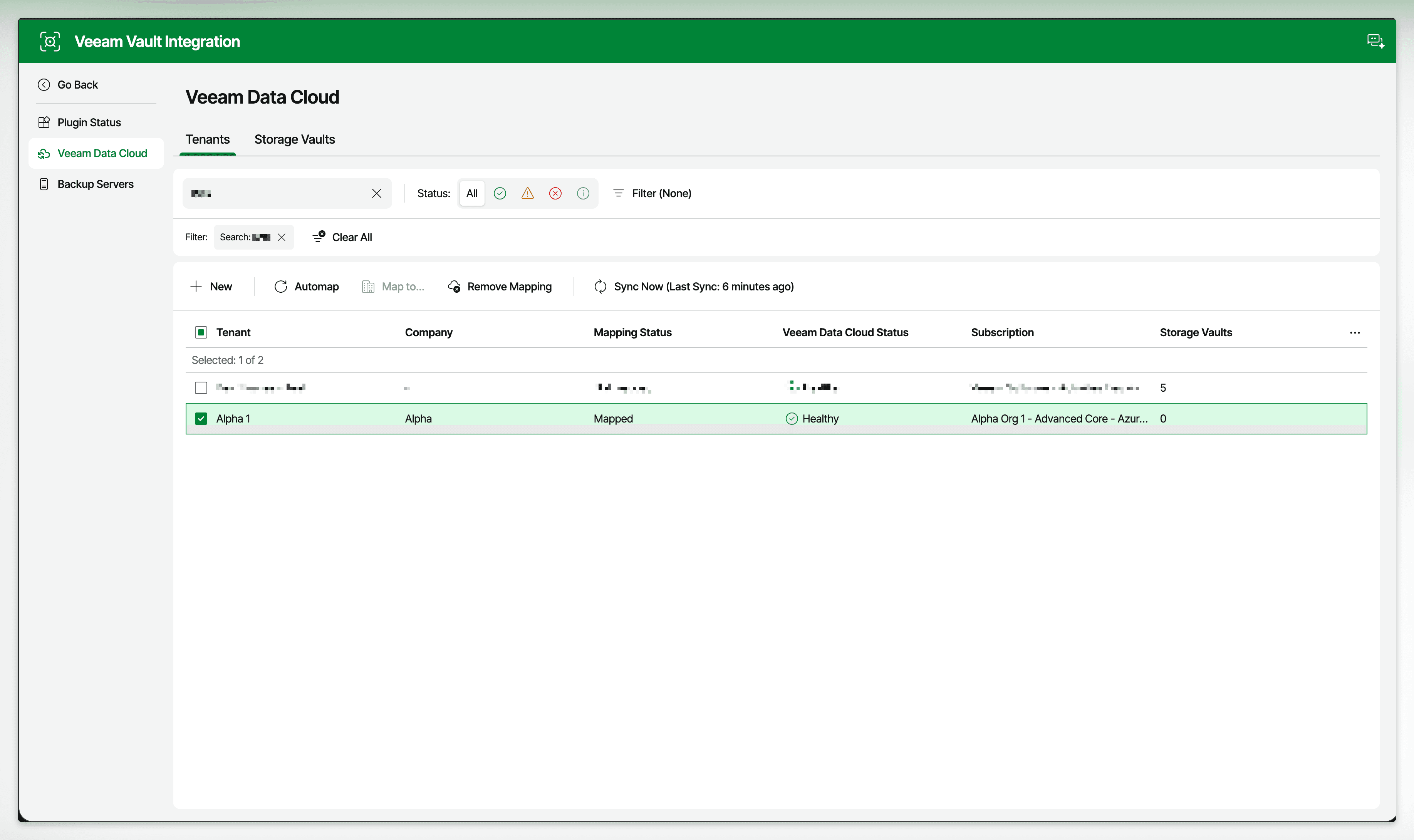
At this point you have the cloud tenant UID from Step 3 and the VSPC organization UID from Step 1. This call links them together by hitting POST /api/v3/vdcVault/tenants/{tenantUid}/mapping.
tenantUid="6d18e5fe-20e5-4248-a87f-29a109a44b80"
organizationUid="dc2e0aa8-4b32-407d-b511-b1c6cc62f30c"
curl -X 'POST' \
  "https://vspc.domain.example/api/v3/vdcVault/tenants/${tenantUid}/mapping?organizationUid=${organizationUid}" \
  -H 'x-api-version: 3.6.2' \
  -H 'accept: application/json' \
  -H 'Authorization: Bearer YOUR_REST_API_KEY' \
-d ''Even though this endpoint expects no JSON payload, curl won’t send a Content-Length header unless you tell it to. Skip -d '' and the VSPC API rejects the call with 411 Length Required instead of processing the mapping. PowerShell’s Invoke-RestMethod doesn’t have this problem. It sets Content-Length: 0 automatically for a bodyless POST.
$tenantUid = "6d18e5fe-20e5-4248-a87f-29a109a44b80"
$organizationUid = "dc2e0aa8-4b32-407d-b511-b1c6cc62f30c"

Invoke-RestMethod `
  -Method POST `
  -Uri "https://vspc.domain.example/api/v3/vdcVault/tenants/$tenantUid/mapping?organizationUid=$organizationUid" `
  -Headers @{
    "x-api-version" = "3.6.2"
    "accept"        = "application/json"
    "Authorization" = "Bearer YOUR_REST_API_KEY"
  }
A successful response returns an empty JSON object, confirming the relationship has been saved:
{}Discovering Available Countries and Regions#
Before creating the storage vault, you need to know which Azure regions are valid for your specific subscription. Available data centers aren’t a global list; they’re scoped to the subscription contract, so we query GET /api/v3/vdcVault/subscriptions/{subscriptionUid}/countries rather than hardcoding a region and reliably breaking your provisioning scripts down the line.
subscriptionUid="81bd49fb-f2ef-5935-ab93-b9719867dd93"
curl -X 'GET' \
  "https://vspc.domain.example/api/v3/vdcVault/subscriptions/${subscriptionUid}/countries" \
  -H 'x-api-version: 3.6.2' \
  -H 'accept: application/json' \
  -H 'Authorization: Bearer YOUR_REST_API_KEY'
$subscriptionUid = "81bd49fb-f2ef-5935-ab93-b9719867dd93"
Invoke-RestMethod `
-Method GET `
-Uri "https://vspc.domain.example/api/v3/vdcVault/subscriptions/$subscriptionUid/countries" `
-Headers @{
"x-api-version" = "3.6.2"
"accept" = "application/json"
"Authorization" = "Bearer YOUR_REST_API_KEY"
}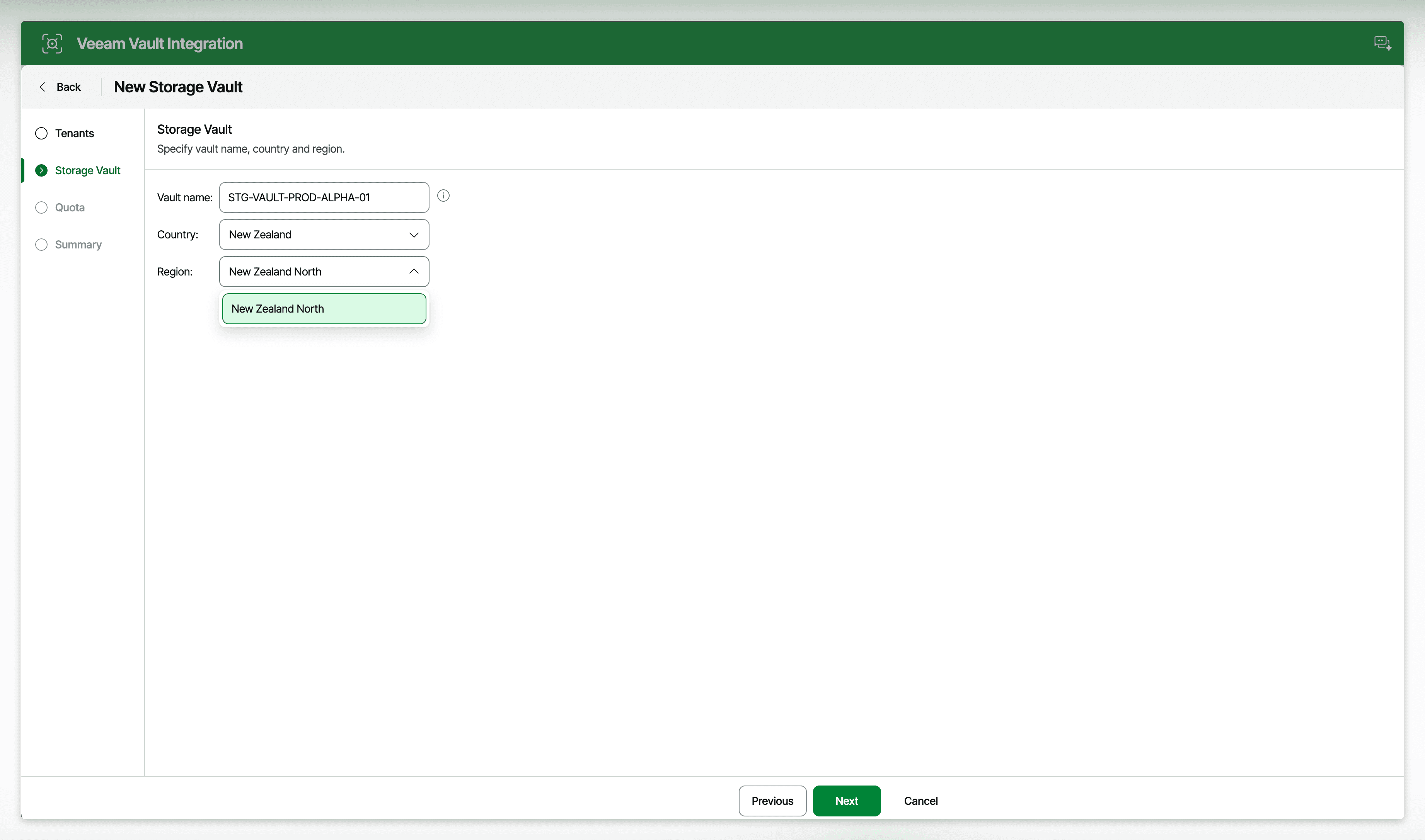
The response groups data centers by country, and each country object contains a dataCenters array. Unlike the other endpoints in this walkthrough, this one doesn’t wrap the array in a meta.pagingInfo block, and the real list scales with however many regions are enabled for your subscription. The example below is trimmed to a few countries for readability.
{
  "data": [
    {
      "id": "7",
      "name": "United States",
      "dataCenters": [
        {
          "id": "centralus",
          "name": "Central US"
        },
        ...
      ]
    },
    ...
  ]
}
{
"data": [
{
"id": "7",
"name": "United States",
"dataCenters": [
{
"id": "centralus",
"name": "Central US"
},
{
"id": "eastus2",
"name": "East US 2"
},
{
"id": "southcentralus",
"name": "South Central US"
},
{
"id": "westus2",
"name": "West US 2"
},
{
"id": "westus3",
"name": "West US 3"
}
]
},
{
"id": "12",
"name": "Netherlands",
"dataCenters": [
{
"id": "westeurope",
"name": "West Europe"
}
]
},
{
"id": "13",
"name": "United Kingdom",
"dataCenters": [
{
"id": "uksouth",
"name": "UK South"
}
]
}
]
}id field from the dataCenters array (e.g., westeurope or eastus2), not the human-readable name. The vault creation endpoint expects the raw ID string.Provisioning the Storage Vault#
This is where the naming freedom actually shows up. With the tenant UID from Step 3 and the data center ID from Step 5, you can create the storage vault with whatever name your systems require by hitting POST /api/v3/vdcVault/storageVaults. The payload pulls together everything we’ve gathered so far:
{
  "tenantUid": "6d18e5fe-20e5-4248-a87f-29a109a44b80",
  "name": "STG-VAULT-PROD-ALPHA-01",
  "dataCenterId": "westeurope",
  "storageQuota": 1099511627776,
  "quotaEnforced": false
}
curl -X 'POST' 'https://vspc.domain.example/api/v3/vdcVault/storageVaults' \
-H 'x-api-version: 3.6.2' \
-H 'accept: application/json' \
-H 'Content-Type: application/json' \
-H 'Authorization: Bearer YOUR_REST_API_KEY' \
-d '{
"tenantUid": "6d18e5fe-20e5-4248-a87f-29a109a44b80",
"name": "STG-VAULT-PROD-ALPHA-01",
"dataCenterId": "westeurope",
"storageQuota": 1099511627776,
"quotaEnforced": false
}'$body = [ordered]@{
tenantUid = "6d18e5fe-20e5-4248-a87f-29a109a44b80"
name = "STG-VAULT-PROD-ALPHA-01"
dataCenterId = "westeurope"
storageQuota = 1099511627776
quotaEnforced = $false
} | ConvertTo-Json
Invoke-RestMethod `
-Method POST `
-Uri "https://vspc.domain.example/api/v3/vdcVault/storageVaults" `
-Headers @{
"x-api-version" = "3.6.2"
"accept" = "application/json"
"Authorization" = "Bearer YOUR_REST_API_KEY"
} `
-ContentType "application/json" `
-Body $body
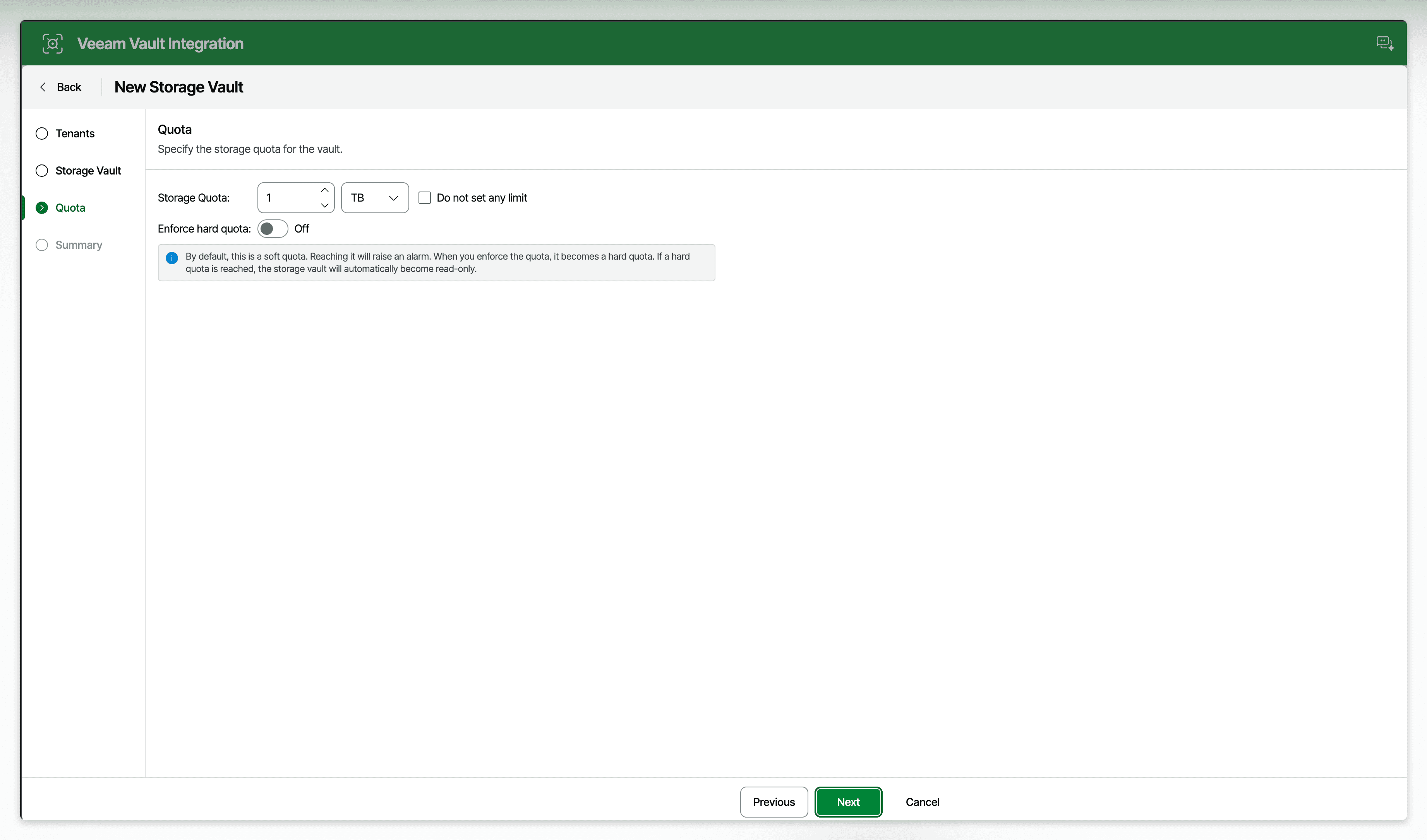
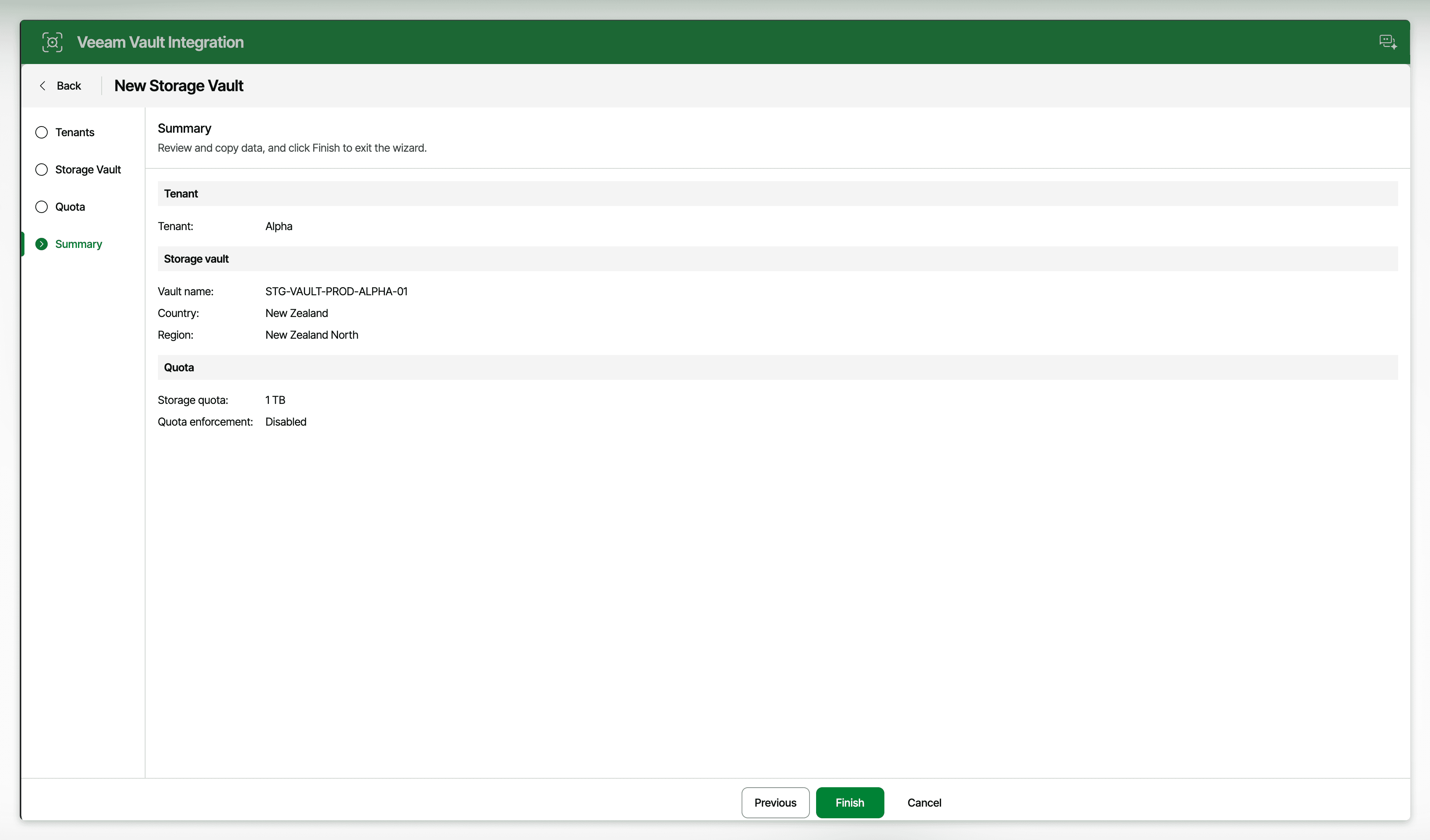
storageQuota field expects bytes, not gigabytes. If you map a value from a CSV expecting gigabytes and pass 500, you’ll provision a 500-byte storage vault. Always convert first, using Desired_GB * 1073741824.storageQuota and quotaEnforced fields together control alerting and enforcement. Omit storageQuota (or pass null) with quotaEnforced: false for no limit. Set a quota with quotaEnforced: false for a soft limit that triggers an alert when crossed but doesn’t stop backups. Set a quota with quotaEnforced: true for a hard limit that flips the vault to read-only the moment the threshold is breached.That returns the finished vault:
{
  "data": {
    "instanceUid": "eac14f91-0f1b-4716-9c27-993f419810fb",
    "name": "STG-VAULT-PROD-ALPHA-01",
    "tenantUid": "6d18e5fe-20e5-4248-a87f-29a109a44b80",
    "countryId": "12",
    "dataCenterId": "westeurope",
    "storageQuota": 1099511627776,
    "consumedSpace": 0,
    "status": "Active",
    "quotaEnforced": false,
    "isReadOnly": false,
    "readOnlyReason": null,
    "_embedded": null
  }
}
What’s Next#
At this point you have an active storage vault sitting in Veeam Data Cloud, named exactly to your specification. Six API calls, no wizard, no sequential suffix you didn’t choose.
What it doesn’t have yet is a backup server to send data to it. If you click through to the finished screen in the VSPC UI wizard, you’ll notice the console doesn’t automatically connect the vault to the client’s VBR instance. That connection is a separate step, and the UI leaves it entirely up to you.
Part 2 covers the VBR-side setup. That means identifying the tenant’s VBR server, registering it against the VDC ecosystem, and provisioning the backup repository on the managed VBR Server so backups can actually start targeting Vault.